Scrape is the workhorse enrichment in Manycrawl. Point it at a column of URLs and it visits each page in your browser, pulls back structured data, and drops it into your sheet. No API key needed.
When you add a Scrape column, you'll see a settings panel with four sections.
Pick the column that contains the URLs you want to fetch. This can be a Places Search result, a Crawl output, a Search Engine result, or just a manually pasted list. Manycrawl shows you the first row's value as a preview so you can confirm you've picked the right column.
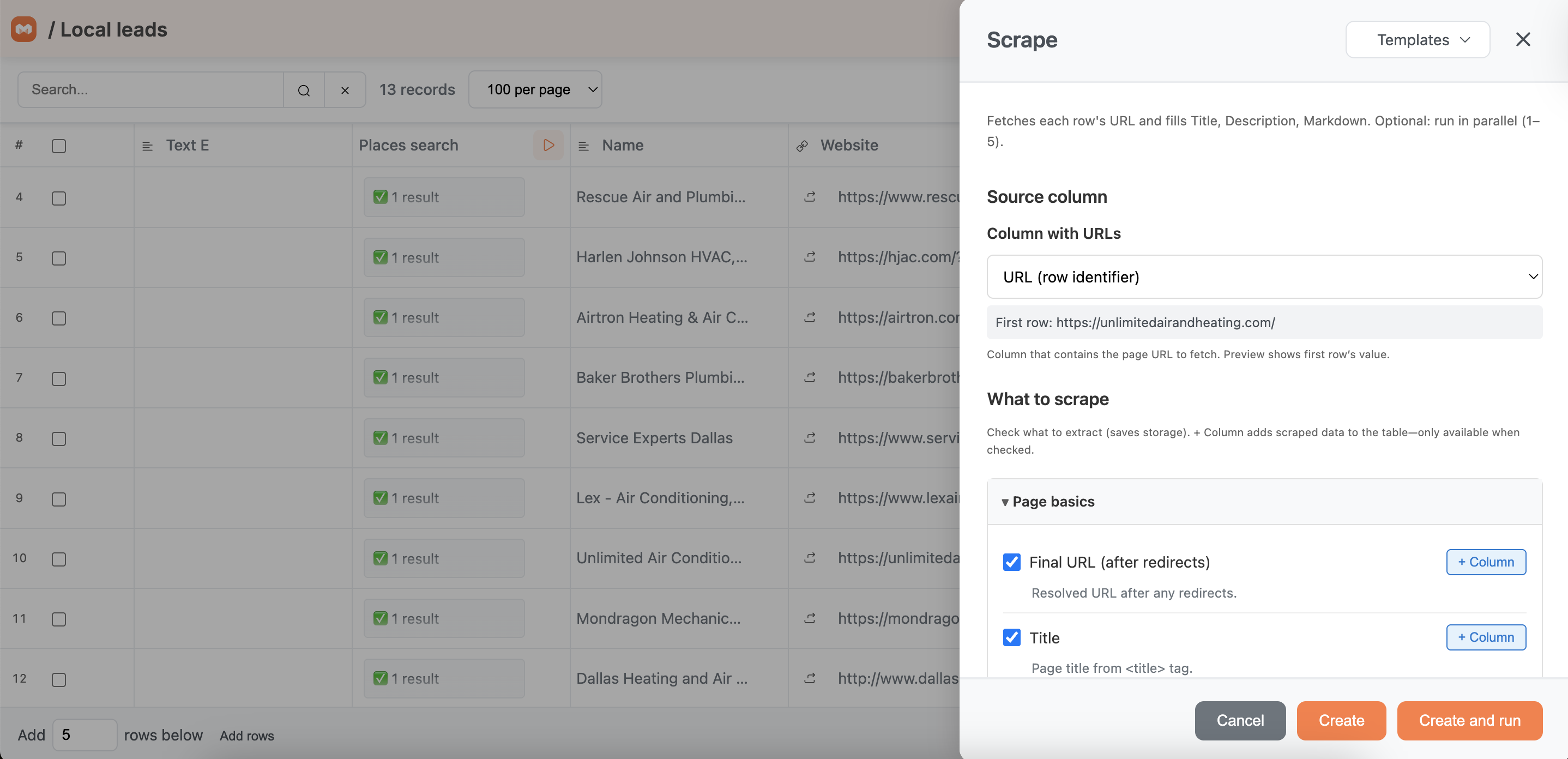
Check the boxes for the data you actually need. Skipping fields saves storage and keeps your table lean. Each box has a + Column button next to it — clicking that adds the field as its own column in your table instead of hiding it inside the scrape record.
The available fields are grouped into four categories:
Page basics
Final URL (after redirects) — the resolved URL after any redirects fire
Title — the page title from the <title> tag
Meta description — from <meta name="description">
Content
Body text — plain text, best for feeding into AI prompts
Markdown — structured version, larger size
Full HTML — raw page source (disabled by default to save storage)
Links & references
Page links — every link found on the page
Social profiles — LinkedIn, Twitter, Facebook, Instagram, YouTube, TikTok, etc.
Contact info
Email addresses — every email found in the page content
Phone numbers — every phone number found in the page content
Enable scrolling — scrolls to the bottom of the page to trigger lazy-loaded content. Useful for sites with infinite scroll or content that only appears after you scroll.
Parallel scrapes (1–8) — how many URLs to fetch at once. Higher numbers run faster but open more tabs simultaneously, which uses more memory. Start at 1 and increase if you have a fast machine and a lot of rows.
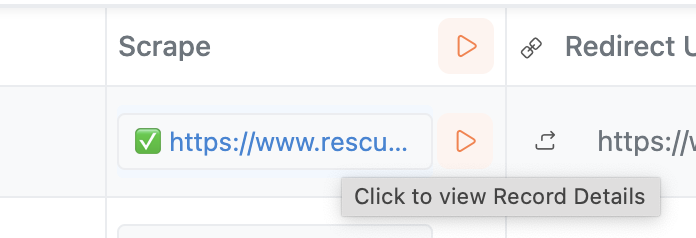
Once a row finishes, the Scrape cell shows a green check and the URL. Alongside it, Manycrawl populates whichever fields you checked as their own columns — Title, Description, Body text, Links, and so on.
Some fields show up as counts rather than full data: 188 links, 2 emails, 5 social media. That's because pages can return dozens or hundreds of items per field, and dumping all of them into a single cell would make the table unreadable.
To see everything Scrape pulled for a row, click the scraped cell to open the Record Details panel.
Inside Record Details you'll see:
The requested URL and the redirect URL
Title, description, and full body text
The complete list of links (e.g. all 188), with the first ten shown and the rest collapsed
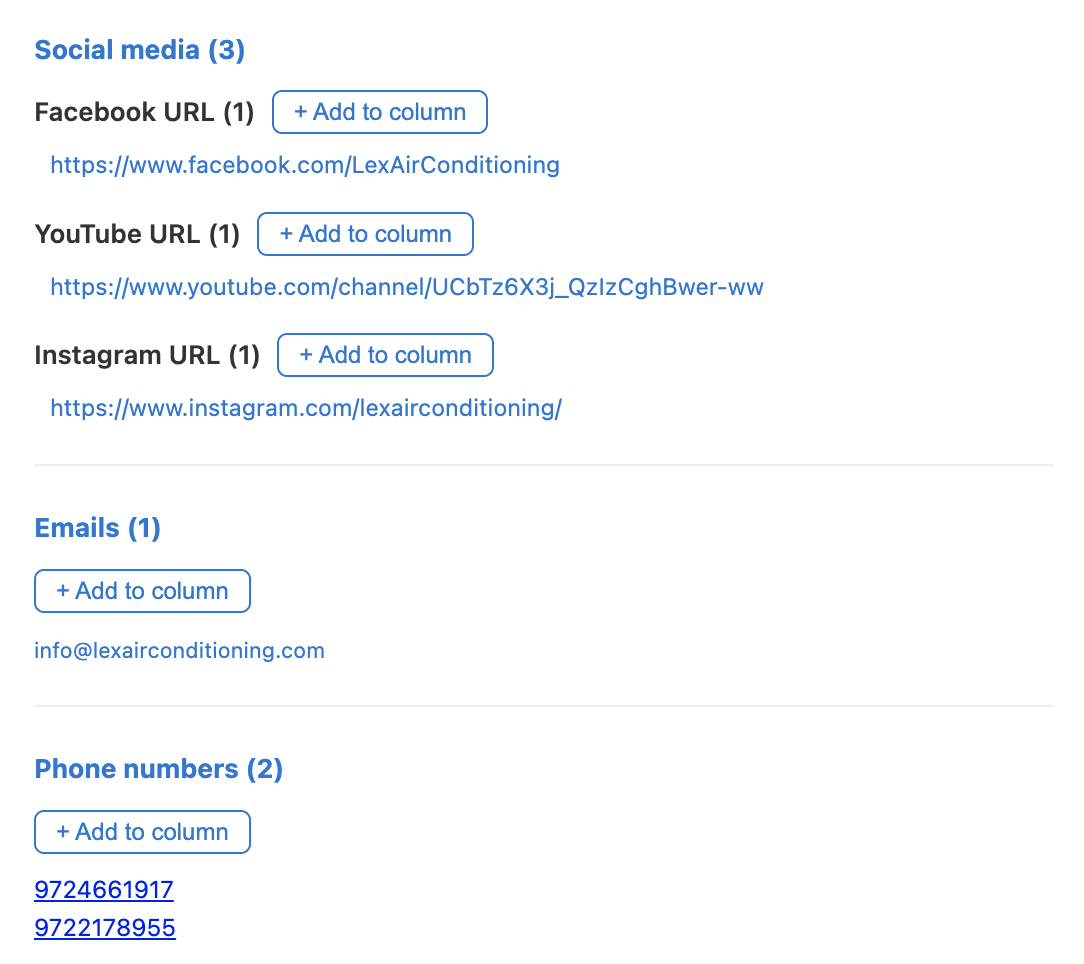
Social media grouped by platform — Facebook URL, Twitter / X URL, YouTube URL, TikTok URL, Instagram URL
All emails found on the page
All phone numbers found on the page
Next to every grouped field in Record Details, there's a + Add to column button. Clicking it pulls that specific data point out of the record and into its own column in your table.
For example, if you click + Add to column next to Facebook URL, Manycrawl creates a new "Facebook URL" column in your sheet and fills in the Facebook URL for every row that has one — not just the row you opened. Same for Instagram, LinkedIn, the first email, the first phone number, and so on.
This is the cleanest way to work with grouped data: scrape once, then promote only the fields you care about into proper columns you can sort, filter, export, or reference in other enrichments via {Column Name}.
Start broad, then narrow. Keep all the fields checked on your first scrape so you can see what's actually on each page. Once you know what you need, uncheck the rest for faster runs.
Use + Column on the scrape settings for fields you know you'll need every time (Title, Description, Body text). Use + Add to column from Record Details for grouped data you want to promote after seeing what's there (specific social platforms, first email, etc.).
Body text feeds AI well. When you chain Scrape into an Analyze and Write column, reference {Body text} — it's already stripped of HTML noise and works better in prompts than Markdown or Full HTML.
Avoid Full HTML if not needed, as it will consume a lot of space on your computer and slow down the extension