Open Settings any time from the top navigation (Dashboard → Settings). The page is organized into five sections, each handling a different part of the extension. Here's what each one does and how to set up the API keys for enrichments that need them.
The top of the page shows four counters: Tables, Storage, Devices, and Actions. These reflect your current usage against your plan limits — useful for checking how much of your monthly action allowance you've used or how much local storage your tables take up.
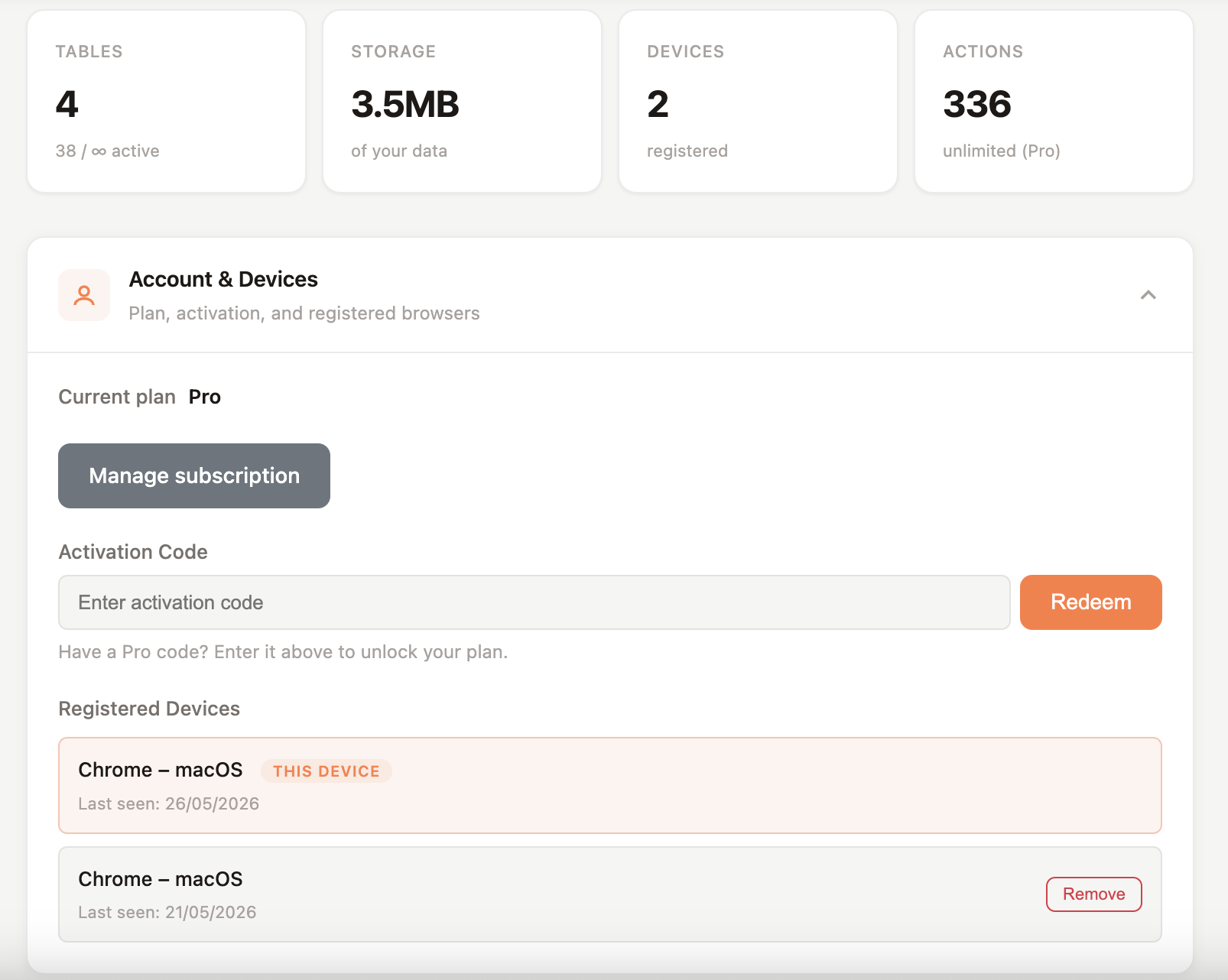
Shows your current plan (Free, Monthly, or Lifetime), a button to manage your subscription, an activation code field, and the devices currently signed into your account.
Activation Code — if you've purchased Lifetime or have a promo code, paste it here and hit Redeem to unlock your plan.
Registered Devices — paid plans let you use Manycrawl on up to 3 devices. Each browser profile on each machine counts as one device. The current device is highlighted with a THIS DEVICE badge. If you hit your device limit, deregister an old one here to free up a slot.
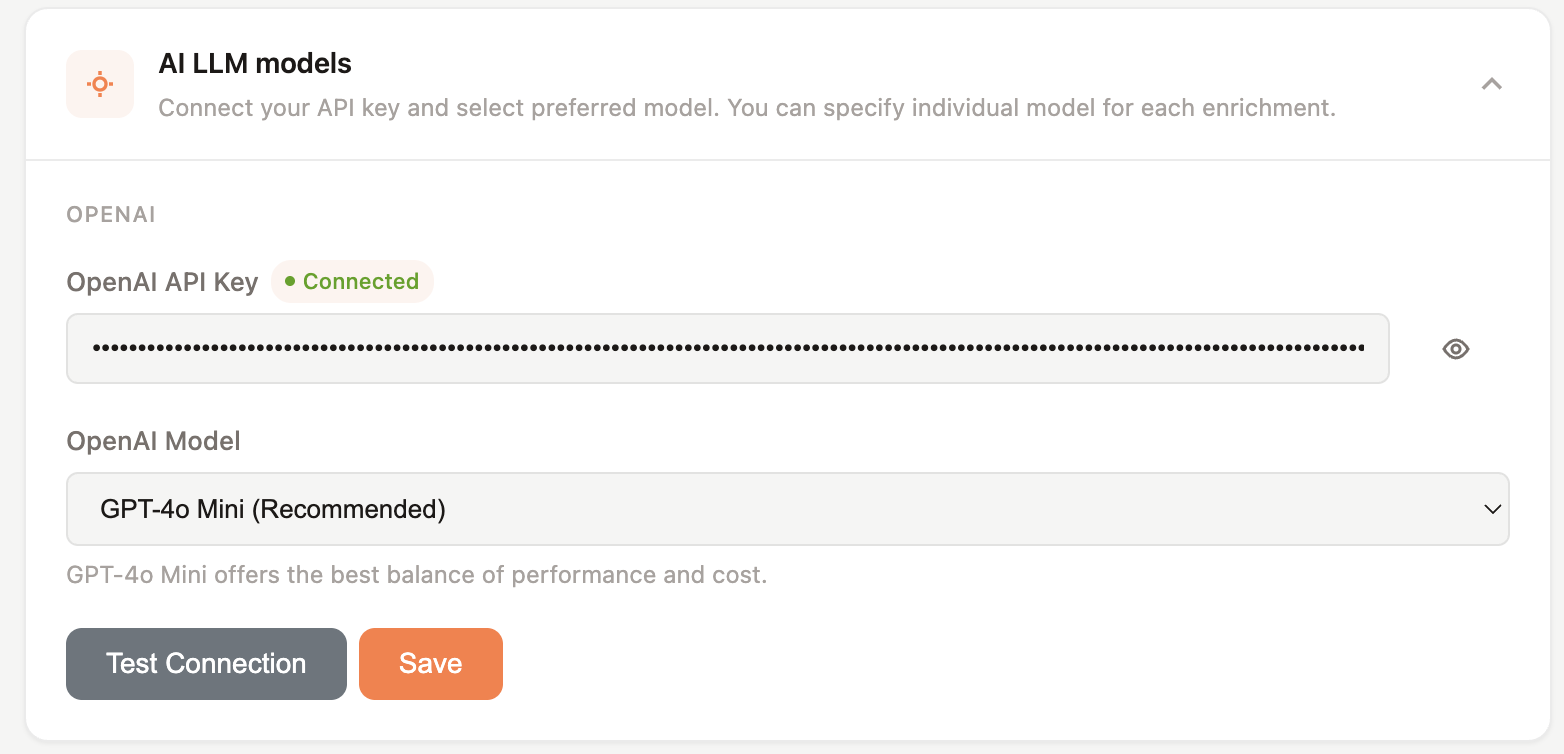
This is where you connect your AI provider so the Analyze and Write enrichment can run.
Where to get it:
Go to platform.openai.com
Sign in or create an account
Click your profile → View API keys (or go to platform.openai.com/api-keys)
Click Create new secret key, name it "Manycrawl", and copy the key (it starts with sk-...)
You'll also need to add a small amount of credit to your OpenAI account under Billing — OpenAI doesn't give free API credits anymore. $5–10 lasts most users a long time at gpt-4o-mini rates.
Where to paste it: Settings → AI LLM models → OpenAI API Key field. Click Save.
Pick the default model used for AI enrichments. GPT-4o Mini is recommended — it's the best balance of cost, speed, and quality for most enrichment tasks like classification, summarization, and short-form writing. You can override this per-column inside any Analyze and Write enrichment if you need a more powerful model for specific tasks.
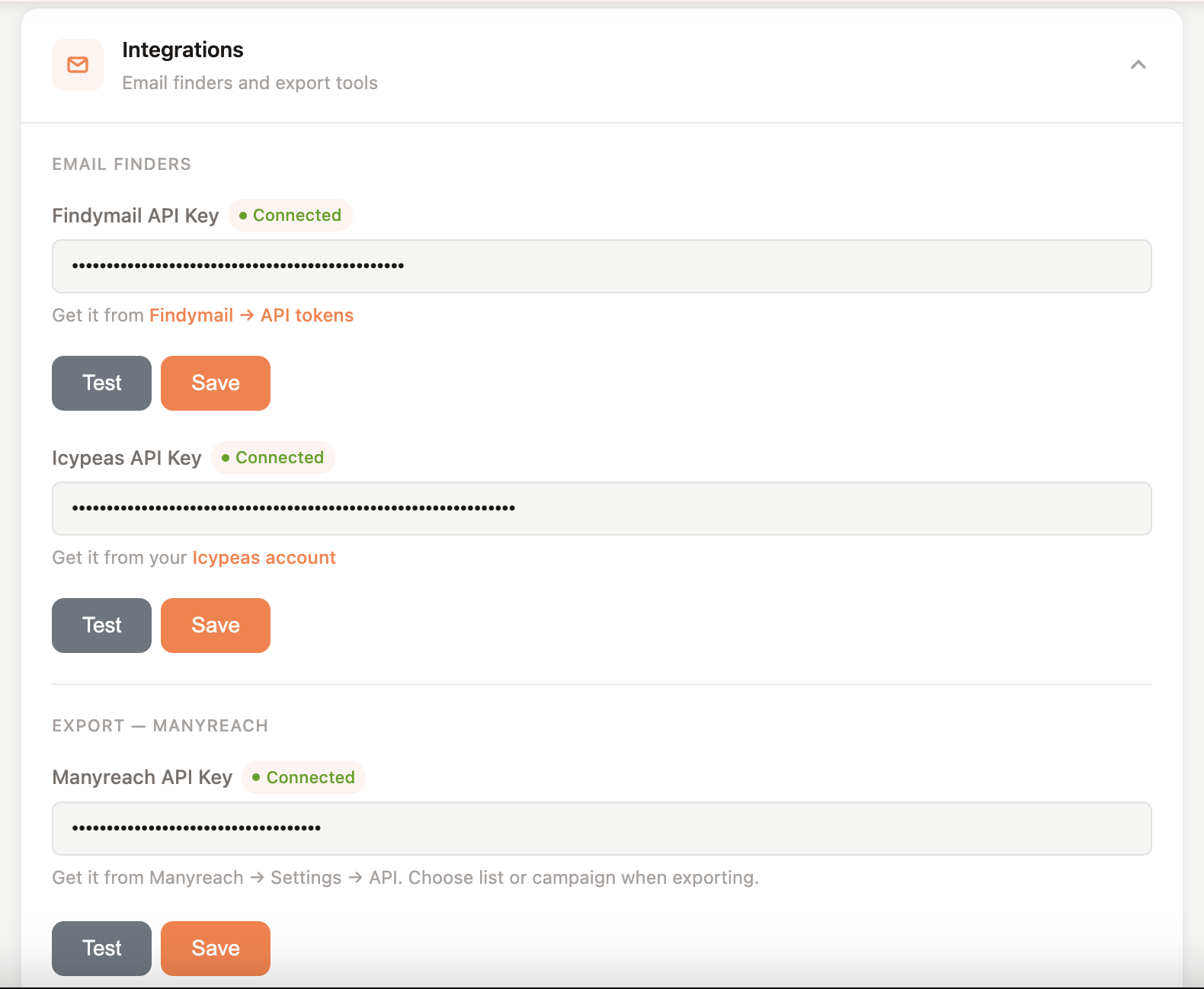
Manycrawl integrates with three external services: Findymail and Icypeas for email finding, and Manyreach for exporting enriched leads into outreach campaigns.
Findymail powers three enrichments: Find email by LinkedIn, Find email by name, and Find email by domain.
Where to get it:
Go to findymail.com and sign in (or create an account if you don't have one)
Navigate to Settings → API tokens
Create a new API token and copy it
Where to paste it: Settings → Integrations → Findymail API Key. Click Save.
You pay Findymail directly at their rates — Manycrawl doesn't see your key or mark up the cost.
Icypeas is a fallback email-finding provider for the Find email by name enrichment. You don't need both Findymail and Icypeas — pick whichever you already use, or set up both for redundancy.
Where to get it:
Sign in to your Icypeas account
Open your account settings
Generate or copy your API key
Where to paste it: Settings → Integrations → Icypeas API Key. Click Save.
Manyreach is the outreach platform built by the same team as Manycrawl. Connecting it lets you push enriched leads — verified emails, personalized openers, the whole row — directly into a Manyreach campaign with one click. No CSV export, no copy-paste.
Where to get it:
Sign in to Manyreach
Go to Settings → API
Copy your API key
Where to paste it: Settings → Integrations → Manyreach API Key.
Click Test to confirm the connection works, then Save. When the key is valid you'll see a green Connected badge next to the field.
Controls how Manycrawl behaves while scraping in your browser.
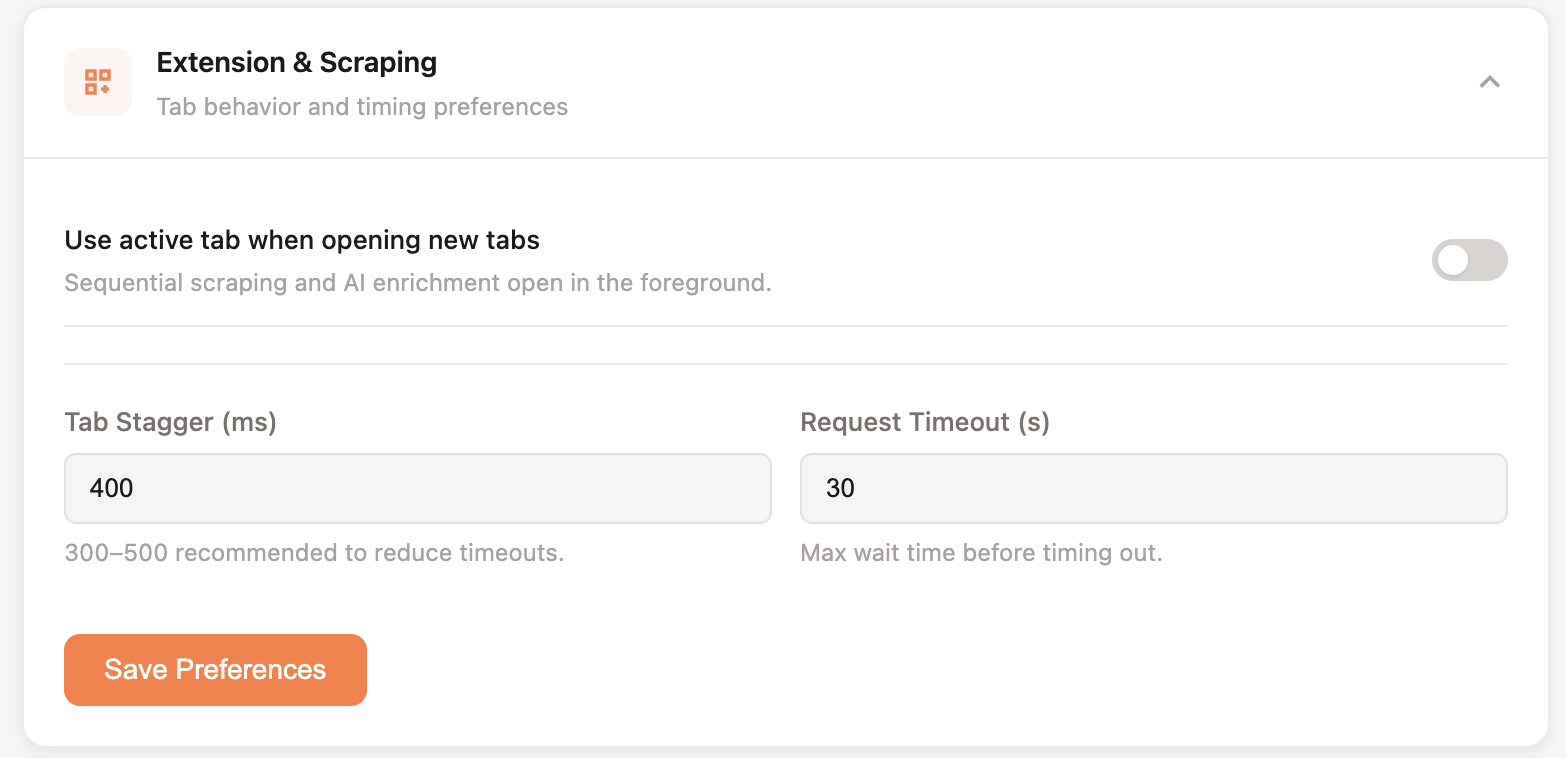
Use active tab when opening new tabs — toggle this on if you want sequential scraping to happen in the foreground tab you're looking at, rather than opening new background tabs. Useful if you want to watch the scrape happen, but won’t work for parallel scraping.
Tab Stagger (ms) — the delay between opening each scraping tab. Default is 400 ms. The hint suggests 300–500 ms to reduce timeouts. Lower values run faster but can overwhelm slow sites; higher values are gentler.
Request Timeout (s) — the maximum time Manycrawl waits for a page to load before giving up on that row. Default is 30 seconds. Increase it for slow sites; decrease it if you want to skip dead URLs faster.
Click Save Preferences after changing any of these.
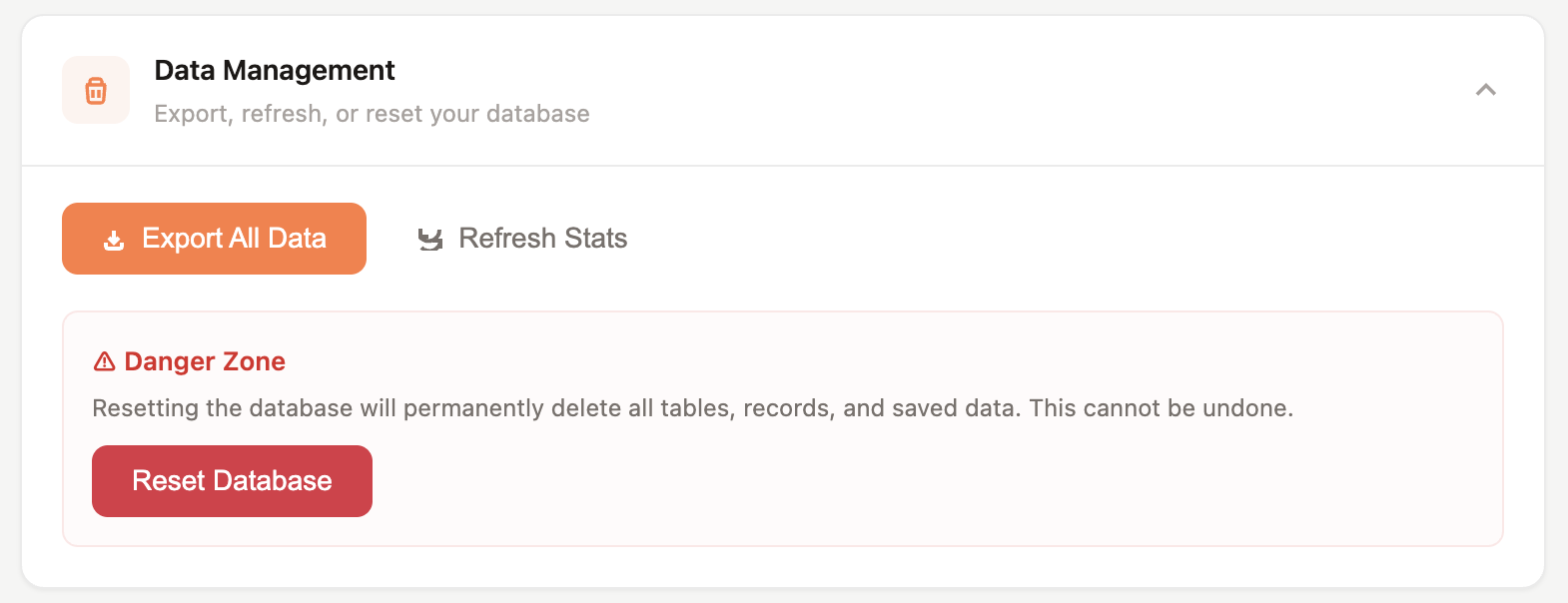
Export All Data — downloads every table you've built as a backup file. Run this periodically if your tables are valuable — your data lives only in your browser, and clearing browser data or switching devices means losing it otherwise.
Refresh Stats — recalculates the usage counters at the top of the page.
Reset Database (Danger Zone) — permanently wipes every table, record, and saved scrape. There's no undo. Only use this if you want to start completely fresh — export first if you have anything worth keeping.
A quick reference so you only set up what you need:
Enrichment
API key required
Scrape | None |
Crawl | None |
Search Engine | None |
Places Search | None |
Get emails from text | None |
Email provider finder | None |
Format company name | None |
Format personal name | None |
Split cell | None |
Merge cell | None |
Analyze and Write | OpenAI |
Find email by LinkedIn | Findymail |
Find email by name | Findymail or Icypeas |
Find email by domain | Findymail |
10 of the 14 enrichments work the moment you install Manycrawl. Add keys only when you need the enrichments that require them.
Every API key you paste into Manycrawl stays in your browser. When an enrichment runs, the call goes directly from your browser to the provider (OpenAI, Findymail, Icypeas, Manyreach) — it does not pass through Manycrawl's servers. We can't see your keys, your prompts, or your scraped data.