Email provider takes any column containing a domain, URL, or email address, looks up its DNS, and tells you everything about how that domain handles email. Is it on Google Workspace or Microsoft 365? Does it have DMARC enforcement? Is there a security gateway like Mimecast or Proofpoint sitting in front of the inbox? All in one column, no API key required.
This is the enrichment you run on your send list right before launching a cold-email campaign. If a domain has strict DMARC, sits behind Mimecast, and uses a generic role address — you probably want to skip it or send extra carefully.
When you add an Email provider column, you'll see a simple settings panel with two sections.
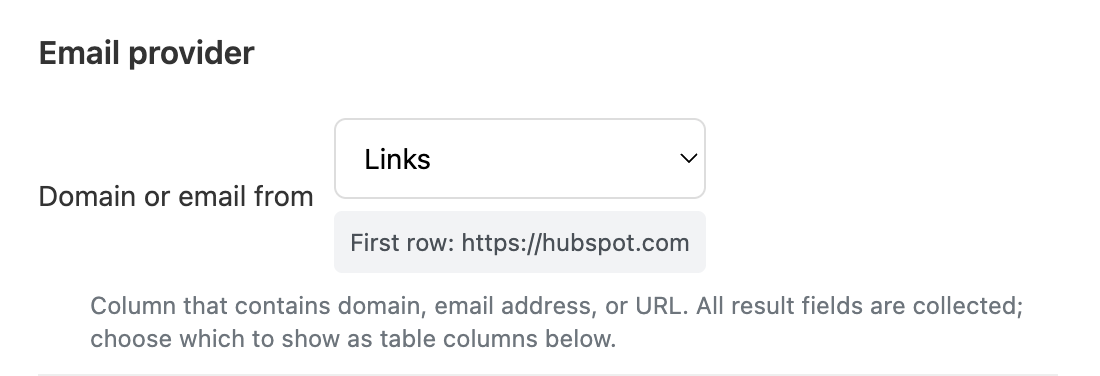
Pick the column containing the domain, URL, or email address you want to look up. Manycrawl handles all three formats — you can point it at:
A column of bare domains (hubspot.com)
A column of full URLs (https://hubspot.com/blog)
A column of email addresses ([email protected])
Manycrawl extracts the domain from whichever format you give it. The first row's value is shown as a preview so you can confirm you've picked the right column.
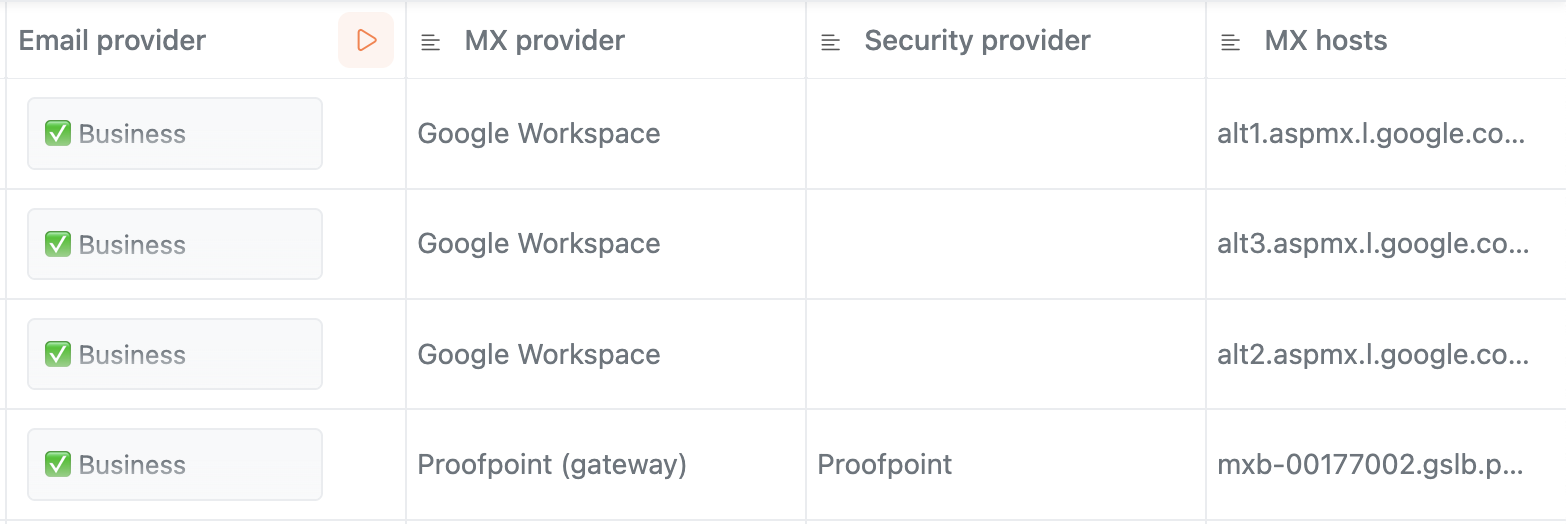
This is the key thing to know about Email provider: all result fields are collected for every row, regardless of what you display. You're just choosing which ones to show as columns in your table.
By default, two columns are added when you create the enrichment:
MX provider — the mail server provider (Google, Microsoft, Zoho, etc.)
Security provider — security or gateway provider if detected (Mimecast, Proofpoint, etc.)
After the enrichment runs, you can come back and add any of the other available fields as their own columns. Click into the column header to reopen the settings panel, and you'll see the full list of fields with + Column buttons next to each one.
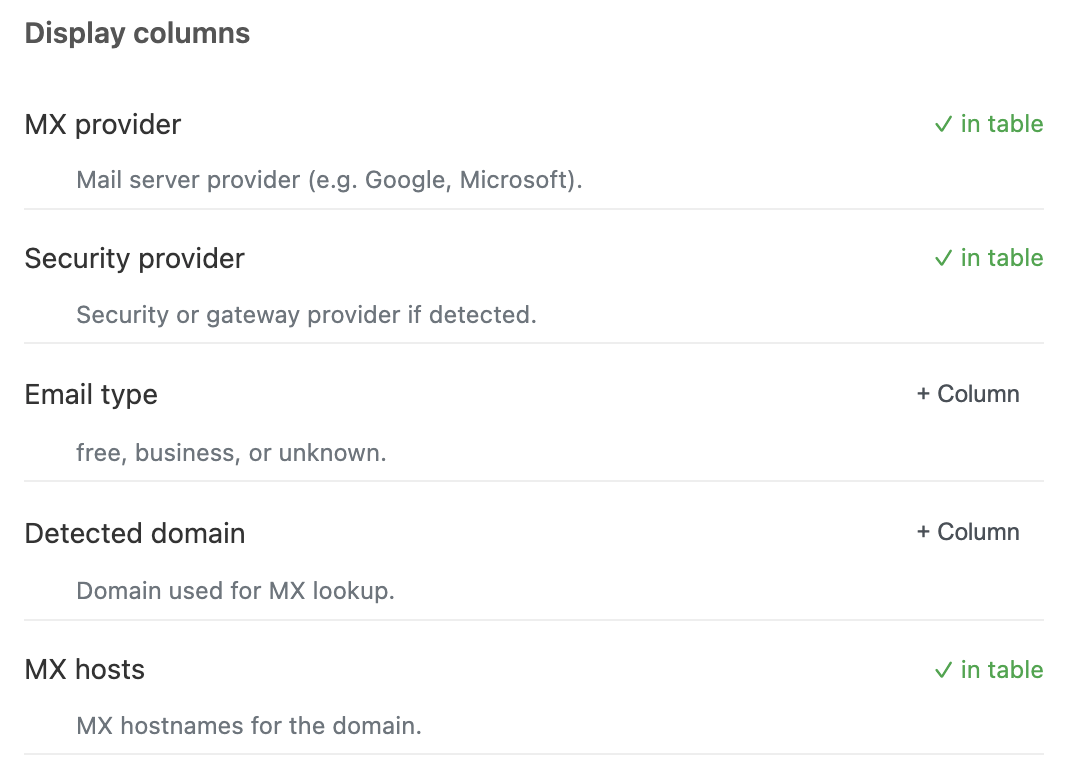
Once you've run Email provider on a row, the following data is collected and available to promote into columns:
Provider basics
MX provider — mail server provider (e.g. Google, Microsoft)
Security provider — security or gateway provider if detected
Email type — free, business, or unknown
Detected domain — the domain used for the MX lookup
MX hosts — the actual MX hostnames for the domain
Authentication records
SPF exists — whether an SPF record is present
SPF record — the full SPF record content
DKIM exists — whether DKIM is configured
DKIM selectors — the DKIM selector names found
DMARC exists — whether a DMARC record exists
DMARC policy — the policy value (none, quarantine, reject)
Other
Security gateway — detected security gateway (e.g. Mimecast)
Is role email — whether the address is a role-based address (info@, support@, etc.)
Role email local part — the role part of the address if it is one
You've built a list of 500 prospects with verified emails, and you're about to load them into your outreach tool. Before you hit send, run Email provider across the list to spot the rows that need extra care or should be skipped.
Setup:
Domain or email from: your verified email column
Display columns: MX provider, DMARC policy, Security gateway, Is role email
Hit Create and run. Within a minute every row has its email infrastructure mapped. Now you can sort and filter:
DMARC policy = reject + Security gateway present → these are the strictest inboxes. Send from a well-warmed domain, avoid spammy phrasing, or skip entirely.
Is role email = true → info@, support@, sales@ addresses. Low reply rates and high spam-complaint risk. Usually safe to skip.
MX provider = Google or Microsoft → the majority of business inboxes. Standard cold-email rules apply.
A 30-second pre-flight check that saves your sender reputation.
Segment by infrastructure. Sort your prospect list by MX provider to write Google Workspace-specific vs Microsoft 365-specific message variations or sender specific targeting.
Find role emails to clean up. Run it across your existing contact list and filter for Is role email = true to identify generic addresses that should be replaced with named contacts.
Competitive intel. Check which email security tools your competitors use — useful if you sell into security or IT.
Detect free email accounts. Filter for Email type = free to surface gmail.com / yahoo.com / outlook.com addresses in lists that should be all-business.
Start with the defaults. MX provider and Security provider answer 80% of deliverability questions. Add SPF / DKIM / DMARC fields only when you need that depth.
You can edit the column later. Click the column header to reopen settings and promote more fields into your table at any time — no need to re-run the enrichment, the data is already there.
No API key needed. Email provider runs DNS lookups in your browser. It's free to run on as many rows as you want, with no provider account to set up.
Pair with Find email by domain. Email provider tells you a domain has an MX record; Find email by domain finds the actual mailboxes at that domain. Use them together to qualify which company emails are worth pursuing.