Places search is the fastest way to build a geographically-targeted lead list. Type one query per line, and Manycrawl runs each one through Google's Places tab in your browser, collecting every business it finds with full metadata. Perfect for local lead generation: every dentist in Toronto, every gym in Berlin, every plumbing company in Dallas — all in one column, no API key required.
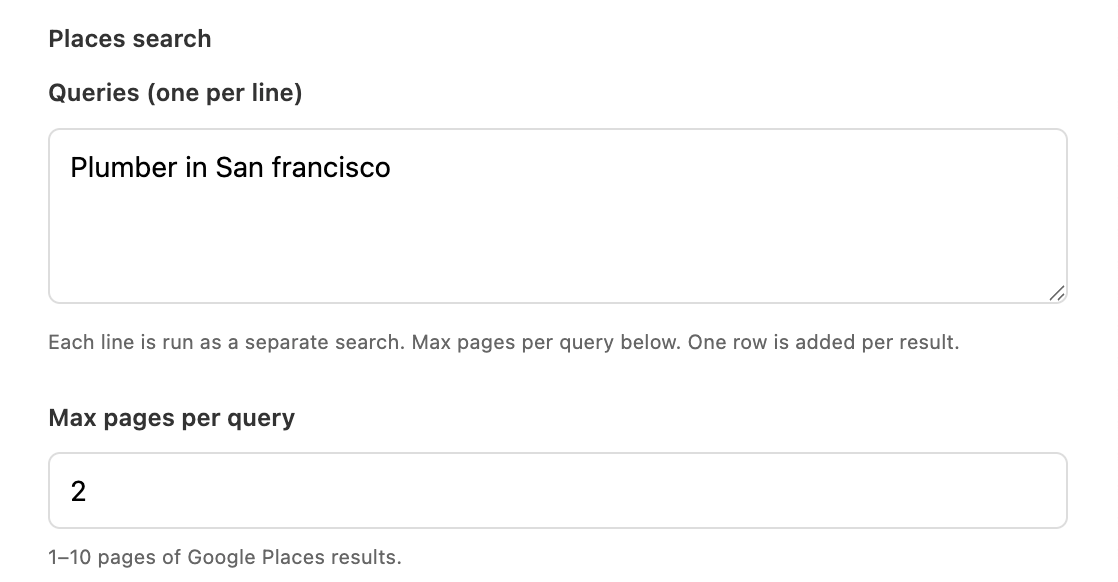
When you add a Places search column, you'll see a settings panel with two main fields and a couple of behavior toggles.
Type one Google Places query per line in the textarea. Each line is run as a separate search, and one row is added to your table for every business returned. You can run dozens of queries at once.
Useful query patterns:
Plumber Dallas — a single category + city
HVAC contractors San Francisco — narrower service type
Dental clinics Toronto — different industry, same shape
Coffee shops in Brooklyn NY — neighborhood-level targeting
Every line is treated as a separate Google Places search, so a list like:
Plumber Dallas
Plumber Austin
Plumber Houston
Plumber San Antonio
…produces a table of every plumbing business across all four Texas cities in one run.
Controls how many pages of Google's Places results Manycrawl collects per query. Range is 1–10. Default is 1. Each page returns roughly 20 businesses, so:
1 page = ~20 businesses per query
5 pages = ~100 businesses per query
10 pages = ~200 businesses per query
Higher values mean more leads but longer run times. Start at 1 to confirm the query is returning what you expect, then scale up.
When enabled (default), new search tabs open in the foreground. When disabled, they open in the background and stay out of your way. Unavailable when Parallel scrapes is greater than 1.
When enabled, follow-up pages open in the same tab by navigating to the URL instead of opening fresh tabs. Useful for keeping your Chrome window tidy on big runs. Unavailable when Parallel scrapes is greater than 1.
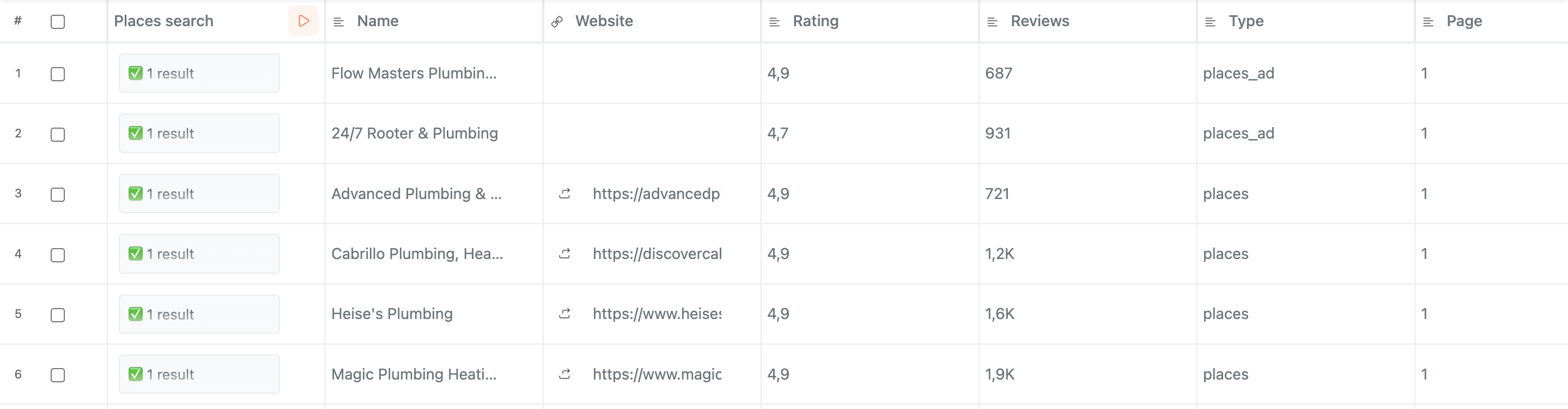
Places search collects a lot more than just business names. By default, four fields show up as columns when you create the enrichment: Name, Website, Rating, and Reviews. The rest are still collected — they're just not displayed until you add them.
After running the enrichment, click the column header to reopen settings and you'll see the full list of fields with + Column buttons next to each one:
In the table by default
Name — business name
Website — business website URL
Rating — star rating (e.g. 4.5)
Reviews — number of Google reviews
Available to add as columns
Category — business category
Address — street address
Phone — phone number
Hours — open/closed status
Services — service tags (On-site, Online, etc.)
Years in business — e.g. "5+ years in business"
Type — result type (places or places_ad)
Snippet — additional text
Headline — subtitle or tagline
Maps URL — link to the business on Google Maps
Price level — price level indicator
Position — position in results
Page — results page number
Important to know: the Type field tells you whether a row is an organic result (places) or a paid placement (places_ad). Ads sit at the top of results and often don't include scrapable business website. You can see this in the example screenshot — the top two places_ad rows have no Website value, while the places rows do. Filter or sort by Type if you want to exclude ads from your outreach.
You're an agency selling websites or marketing services to local businesses. You need a campaign-ready list of plumbing companies in California with verified emails for the owner.
Step 1 — Places search: find the businesses
Queries:
Plumber Los Angeles
Plumber San Francisco
Plumber San Diego
Plumber Sacramento
Plumber Fresno
Set Max pages per query to 3 for a deeper sweep. Add Phone, Address, and Category to your displayed columns. Hit Create and run. Within minutes you have a few hundred plumbing businesses with names, websites, ratings, and contact info.
Step 2 — Scrape: pull each website
Chain a Scrape column referencing the Website column. Make sure Email addresses is checked in the scrape settings. Within a few minutes, every row has its homepage content scraped along with any emails published on the site.
Step 3 — Analyze and Write: generate personalized openers
Chain an Analyze and Write column with a prompt like:
Write a one-sentence cold email opener for {Name}, a local plumbing business.
Use this context about them: {Body text}
Reference something specific. Keep it under 25 words.
End result: a campaign-ready spreadsheet with business name, verified email, phone number, address, and a personalized opener for every row — exportable to CSV or pushable straight into a Manyreach campaign.
Competitive landscape research. Search a category across multiple cities to map who the dominant players are, by Rating and Reviews count.
Acquisition targeting. Filter by Years in business to find established businesses (a useful signal for some SMB acquisition strategies).
Franchise location data. Search a brand name across cities to find all their locations with addresses and phone numbers in one table.
Reputation benchmarking. Pull every competitor in a city and compare their Ratings and Reviews side-by-side to understand where the bar is.
Start with one query and Max pages = 1. Verify the format is right and the results look clean before scaling to dozens of queries and hundreds of rows.
Add Category early. It's not displayed by default, but it's one of the most useful filtering fields — Google's Places category data is more reliable than guessing from business names.
Combine with Scrape and email enrichments. Places search gives you a website URL. Scrape pulls the page. Get emails from text or Find email by domain turns the page into contacts. That four-step chain is the canonical local-leads pipeline in Manycrawl.
No API key needed. Like Scrape and Search Engine, Places search runs entirely in your browser — it scrapes Google's Places results the same way you would manually. Free to use on as many queries as you want, with no Google API account required.