Split cell is the Swiss army knife for unpacking columns that contain more than one piece of information. Search Engine titles, full names, addresses, comma-separated tags, URL paths — anything where you need to pull out a specific piece of structured data into its own column.
The most common use: turning a Search Engine result title like Danielle Lazier - San Francisco Real Estate Broker into two columns — Danielle Lazier and San Francisco Real Estate Broker — so you can use each piece separately downstream.

When you add a Split cell column, you'll see a settings panel with three sections.
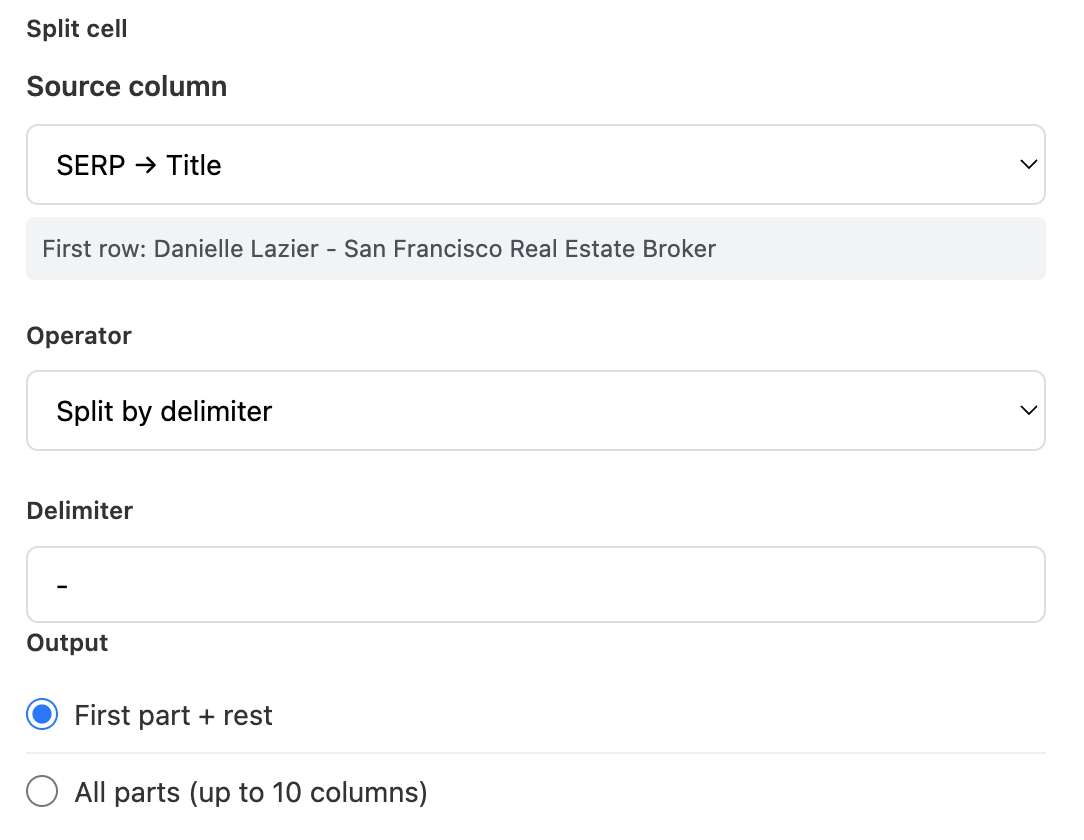
Pick the column you want to split. Manycrawl shows the first row's value as a preview, which is essential for Split cell — you need to see the source content to choose the right operator and delimiter.
The source column is never modified. Split cell only adds new columns next to it.
Six ways to split the cell, each suited to a different shape of data:
Split by delimiter — the default. Splits on a specific character or string like -, ,, |, or @. Use this for delimited data: LinkedIn titles, email addresses, comma-separated lists.
Split by regex — same as above but uses a regular expression as the delimiter. Use this when the separator varies (multiple possible delimiters, optional whitespace, etc.).
Extract by regex (capture groups) — runs a regex with capture groups and pulls out each captured group as its own column. Use this when you want to extract specific patterns from messy text — phone numbers, dates, prices.
First N characters / rest — splits at a fixed character position. Use this for fixed-width data like product SKUs (ABC-12345 where the first 3 characters are the category code).
Before index / after index — splits at the first occurrence of a specific character. Useful for splitting email addresses: everything before @ is the local part, everything after is the domain.
Trim whitespace — strips leading and trailing whitespace from the column without splitting. A quick cleanup operator when you don't actually need multiple columns.
The second field changes based on the operator you picked. For Split by delimiter, it's the character to split on (default is -). For regex operators, it's the regex pattern. For First N characters, it's the number of characters.
Two options for how the split result lands in your table:
First part + rest (default) — produces exactly two columns. The first column gets everything before the first delimiter, the second column gets everything after. Best when you only care about one of the parts.
All parts (up to 10 columns) — produces a column for every split section, up to 10 total. Best when the source has a known structure with multiple meaningful parts.
The source column is never modified. New columns appear next to the Split cell column: the first part lives in the parent column, and any following parts appear as child columns.
You've used Search Engine to find LinkedIn profiles with a query like site:linkedin.com/in/ real estate broker San Francisco. Each result's Title field comes back shaped like:
Danielle Lazier - San Francisco Real Estate Broker
Jeremy Lee - Commercial Real Estate Broker
Misha Weidman - San Francisco Real Estate Broker
Joe Polyak - Top 1% San Francisco Realtor
Ruth Krishnan - #1 SF Realtor® | San Francisco's Top Agent
The name is right there, but it's mashed together with the job title. Split cell separates them in one pass.
Setup:
Source column: SERP → Title
Operator: Split by delimiter
Delimiter: - (just a hyphen)
Output: First part + rest
Hit Create and run. You instantly get two clean columns:
Split cell (names)
Part 2 (titles)
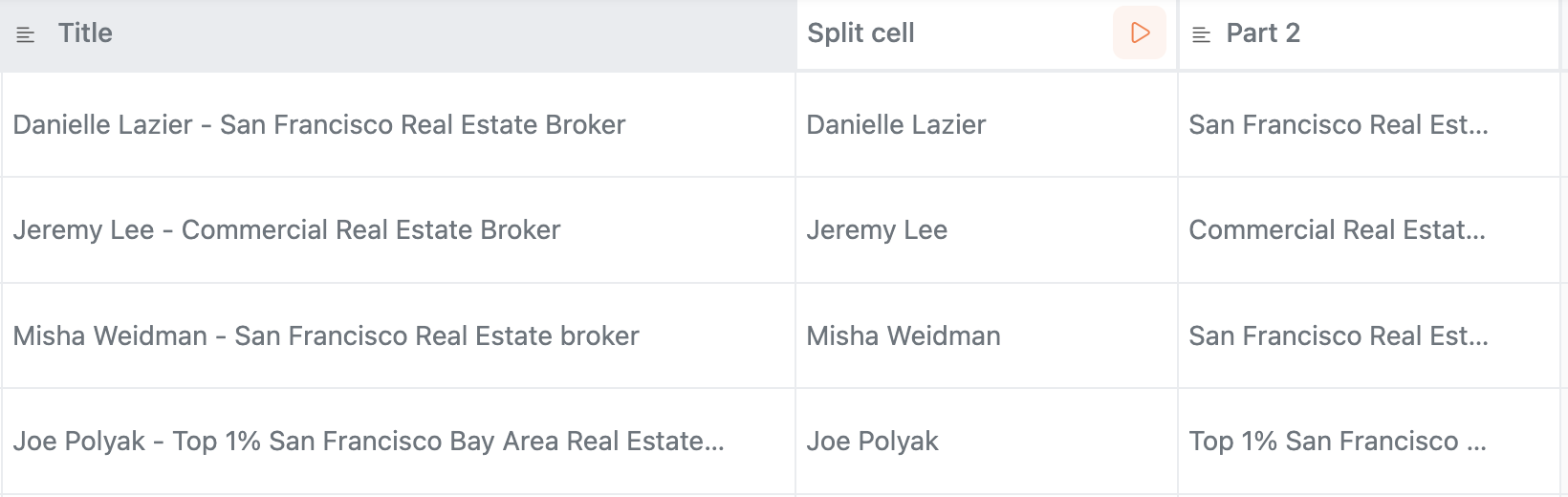
From there, the names are ready to:
Run through Format personal name to strip any remaining emojis or symbols
Feed into Find email by name to get verified business emails
Use in Analyze and Write prompts for personalization
This three-step pattern — Search Engine → Split cell → Format personal name → Find email by name — is the canonical LinkedIn prospecting pipeline in Manycrawl.
Split email addresses. Use Before index / after index with @ as the delimiter to separate the local part (alice) from the domain (acme.com). Useful when you want to enrich the domain separately.
Unpack comma-separated lists. A column containing On-site, Online, Emergency service becomes three columns when you split by , with All parts output.
Extract a URL path. Split a URL by / with All parts to break it into protocol, domain, and path segments.
Pull a phone number out of messy text. Use Extract by regex (capture groups) with a pattern like (\+?\d[\d\s-]{8,}) to pull phone numbers out of scraped Body text.
Quick whitespace cleanup. If you have a column with inconsistent trailing spaces, Split cell with Trim whitespace cleans it up in one pass — no other operator needed.
Always check the preview before running. The first-row preview tells you exactly what character you need as the delimiter. If the LinkedIn titles use - (hyphen with surrounding spaces), splitting by - alone produces messy output with leading/trailing spaces — use Split by regex with \s*-\s* instead, or follow up with a Trim whitespace operator.
First part + rest is what you want most of the time. Even when the source has many parts, you usually only care about isolating one specific piece. Only reach for All parts when the structure is genuinely multi-part.
Chain Split cell + Format personal name for LinkedIn data. Split cell isolates the name; Format personal name strips any remaining emojis or symbols. Two fast columns and you have a perfect name field.
No API key needed. Split cell runs entirely in your browser using deterministic rules — no AI, no provider calls, no cost per row.