Merge columns is the cleanup step before export, or the assembly step before an AI prompt. When your data is spread across several columns and you need it back in one place — a full address, a complete name, an AI-ready context block — Merge columns joins them together exactly the way you want.
It's also the natural counterpart to Split cell: where Split cell breaks one column into many, Merge columns brings many back into one.
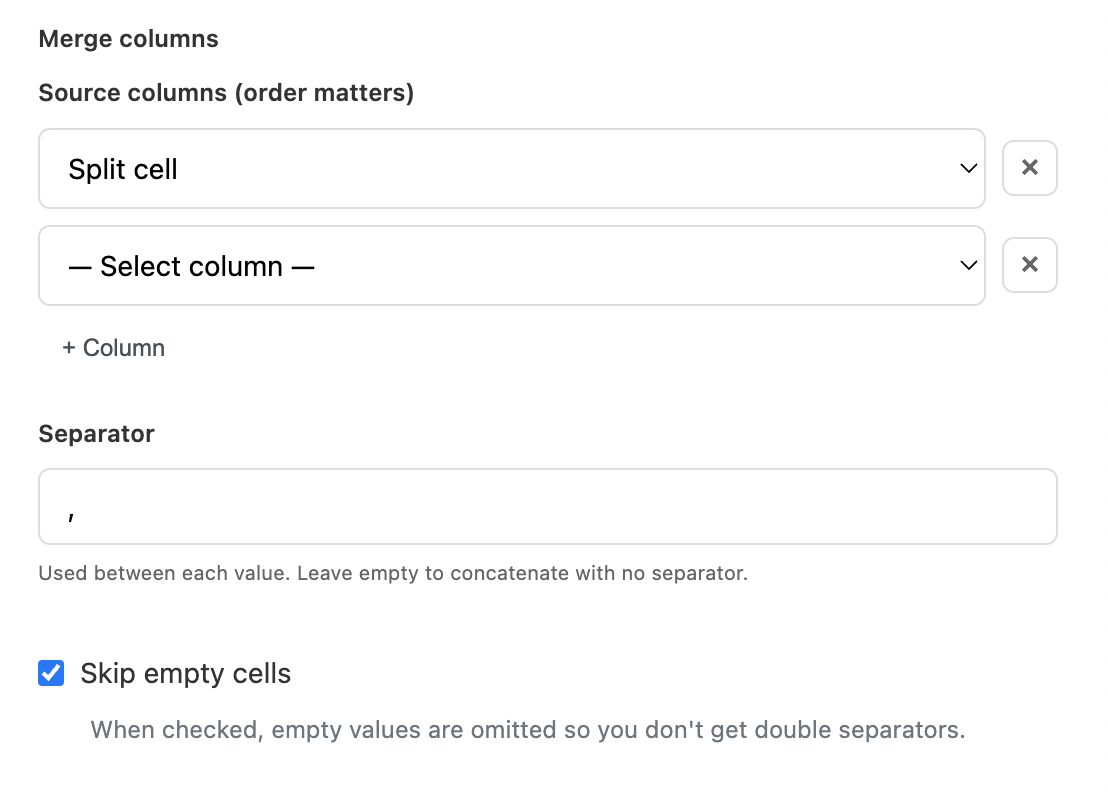
When you add a Merge columns column, you'll see a settings panel with three sections.
Pick the columns you want to combine, in the order you want them joined. The first dropdown is the first piece, the second dropdown is the second piece, and so on. Click + Column to add more source columns — there's no hard limit on how many you can merge.
The order you choose is the order Manycrawl uses to assemble each row. If you pick First name then Last name, you get Jane Smith. If you pick Last name then First name, you get Smith Jane. There's no auto-detect — you control the sequence.
The character or string Manycrawl places between each value. A few useful options:
, (comma) — for CSV-style lists like tags or categories
(space) — for joining names or words
- (space-dash-space) — for readable combined fields like Jane Smith - CEO at Acme
\n (newline) — for stacking values on separate lines, useful in AI prompts
Leave empty — concatenates with no separator, useful when joining things like a domain prefix and suffix
The hint in the panel confirms this: Leave empty to concatenate with no separator.
Checked by default. When a row is missing a value for one of the source columns, Manycrawl simply skips it instead of producing a result with double separators.
For example, merging First name, Middle name, Last name with a space separator:
Without Skip empty cells: Jane Smith (two spaces where the middle name should be)
With Skip empty cells: Jane Smith (clean)
Leave this on unless you specifically need empty positions preserved.
You've scraped a list of LinkedIn profiles, split out the names, and now you want to feed Analyze and Write a single clean context string for each row. The AI does better when relevant context arrives in one labeled block rather than fragmented across many {Column Name} references.
Setup:
Source columns (in order): Split cell (the name), SERP → Snippet (the role/bio)
Separator: , (comma followed by a space)
Skip empty cells: checked
Hit Create and run. Each row produces a single context column like:
Danielle Lazier, San Francisco Real Estate Broker. Top-producing agent...Then reference the merged column in your Analyze and Write prompt:
Based on this profile: {Merge columns}
Write a one-sentence cold email opener referencing something specific.
Cleaner prompt, more focused AI output, fewer placeholder tokens to manage.
Assemble a full mailing address. Merge Street, City, State, Zip code with , as the separator to produce a single export-ready address column.
Build a personalization-ready full name. Merge Format personal name and Format company name with at as the separator to produce Jane Smith at Acme for email greetings.
Combine first and last names into a full name. Merge First name and Last name with a space separator. Useful when your source data has them split (Find email by name expects them separated, but downstream personalization usually wants them together).
Stack values for a long-form AI prompt. Use \n as the separator to stack scraped Title, Description, and Body text into a single labeled input column for Analyze and Write.
Prep for CSV export. When exporting to a tool that expects a single combined field (some old CRMs do this with address or contact info), Merge columns assembles the fields in the exact format the destination needs.
Order matters — preview before running. There's no preview field in this panel, but a quick mental walk-through saves a re-run. If you pick Last name → First name, your output will be Smith Jane, not Jane Smith.
Use space-dash-space (-) for readable joins. It's the format that reads cleanest in exports, dashboards, and AI prompts: Jane Smith - CEO at Acme - San Francisco. Each piece stays visually distinct.
Pair Split cell + Merge columns for restructure jobs. When you need to rearrange data — split a messy field, fix some pieces, then recombine them — these two enrichments are the workflow. Split cell to unpack, Format personal name or Format company name to clean, Merge columns to reassemble.
Keep Skip empty cells on unless you specifically need empty positions. Double-separators (Jane Smith, ,, San Francisco,) almost always cause problems downstream in exports or AI prompts.
No API key needed. Merge columns runs entirely in your browser using deterministic rules — no AI, no provider calls, no cost per row.