Note: you need to have 2-Step Verification turned ON in order to see the App passwords section. Check this article if you need help with 2-Step Verification.
1. Click "2-Step Verification"
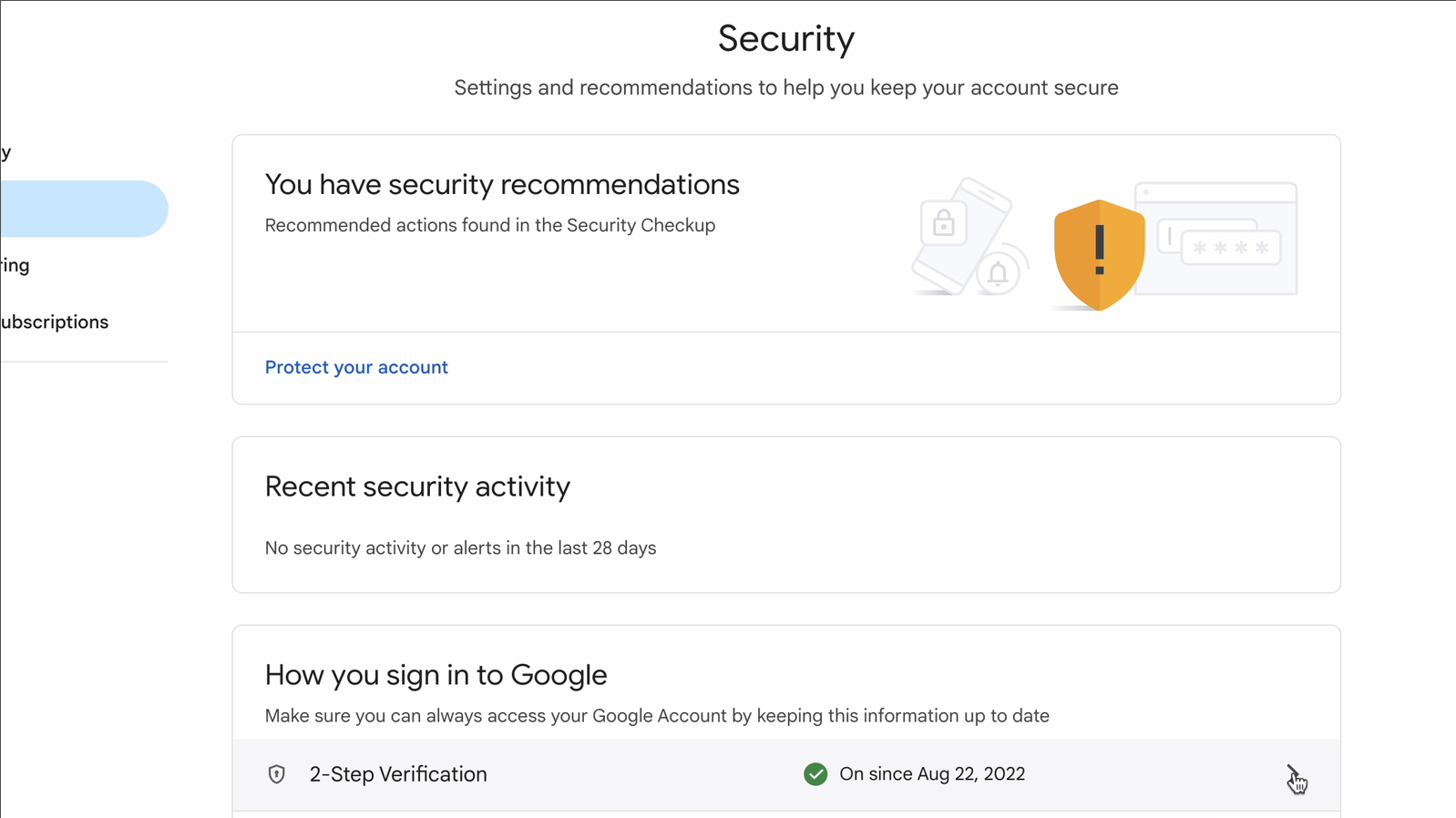
2. Scroll to the bottom and click App passwords
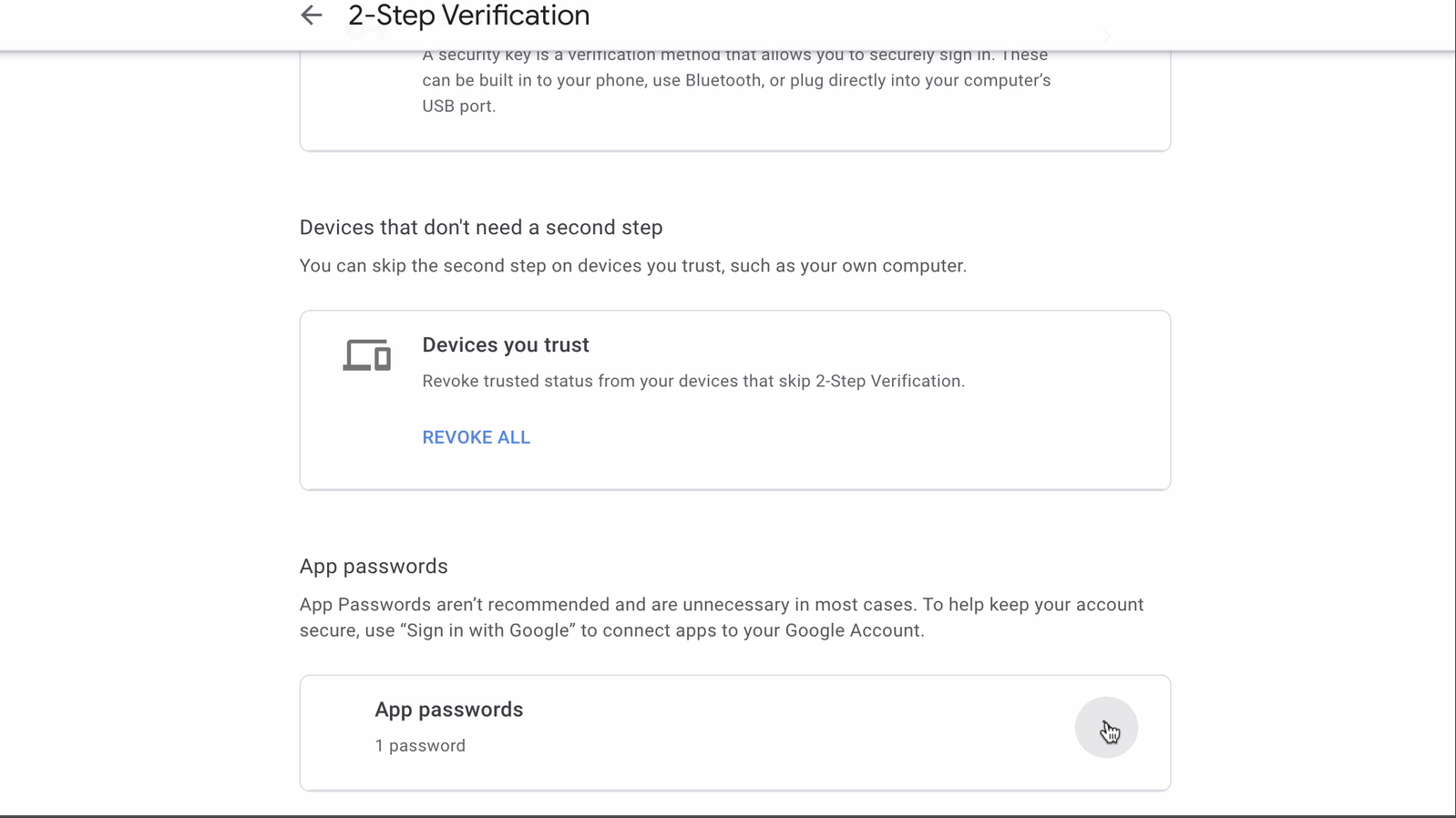
***If you can’t find the “App password” option, go back to the main menu and type the App Password into the search bar.
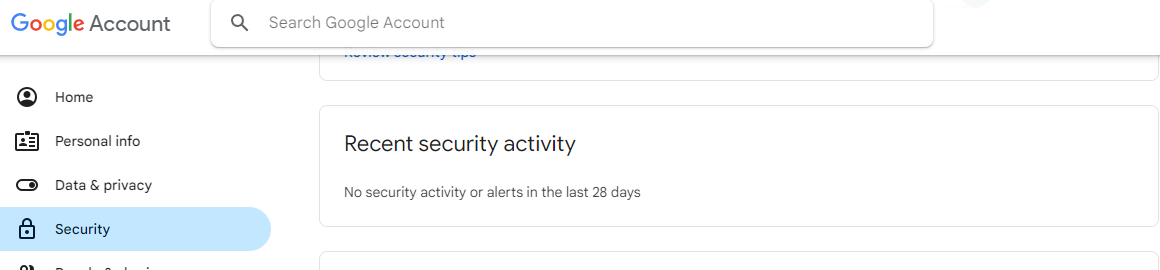
Once you find the “App passwords” option, click on it.
3. Type in manyreach and click "Create"
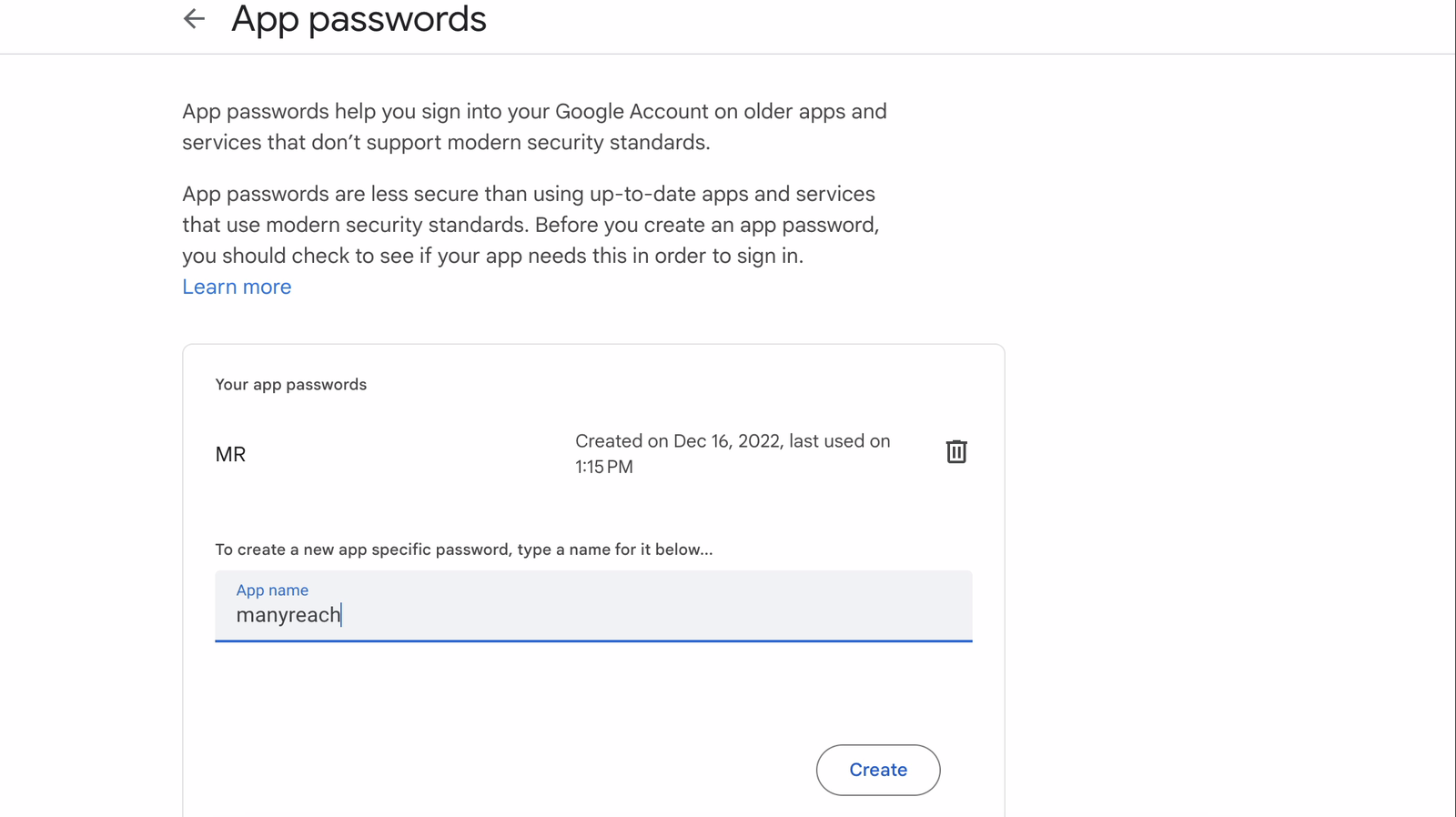
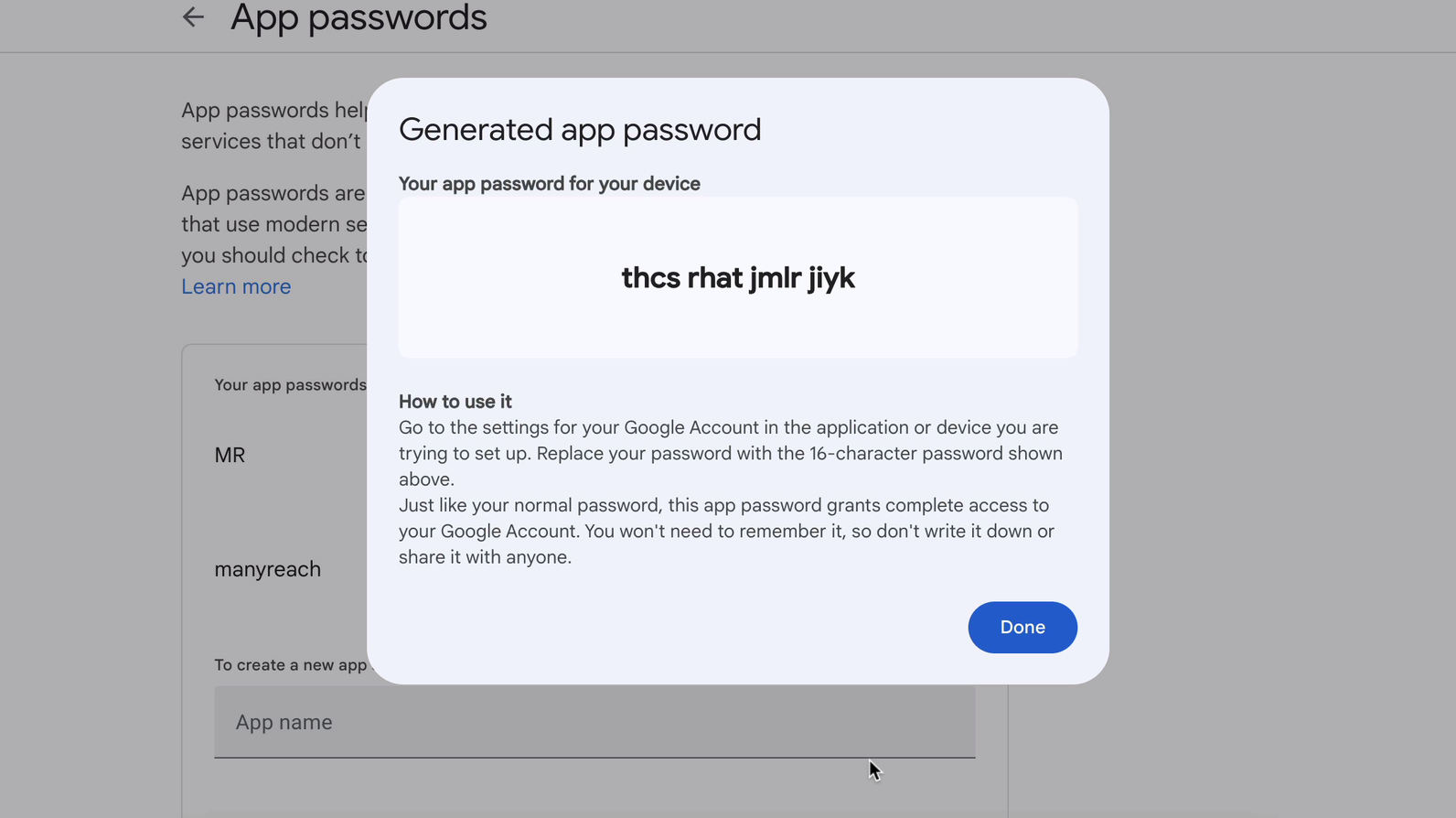
4. Copy the 16-digit code (including spaces) and use it as a password when connecting your sender to Manyreach.