You can add leads to your Manyreach either by uploading your lead list on your CRM or directly in your campaigns.
Here are the steps that you can take to add these leads in bulk to Manyreach.
To add leads to your CRM, first go to your Manyreach Dashboard and go to your CRM.
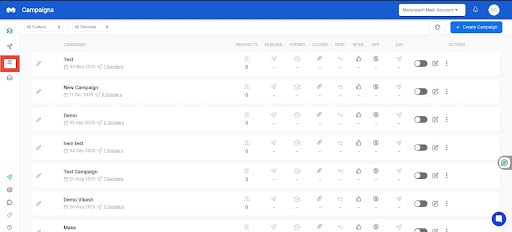
Once you’re on your CRM, find the “Upload CSV” option, on the top right corner of the page.
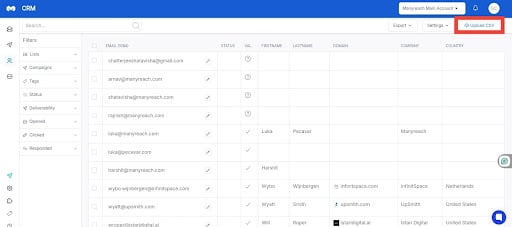
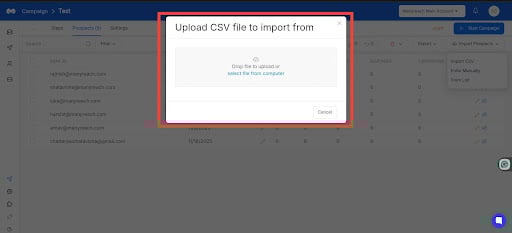
Now, click this option, and click the “Upload CSV file to import from” option.
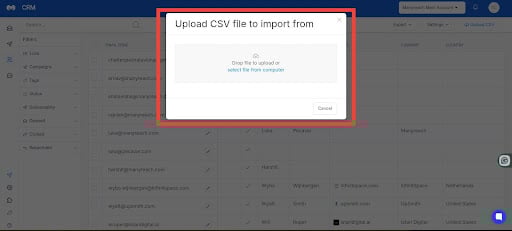
Finally, drop your file in the box, or upload your CSV file from your computer, and you’re done.
To add leads to your Manyreach campaign, first go to your dashboard and select your campaign.
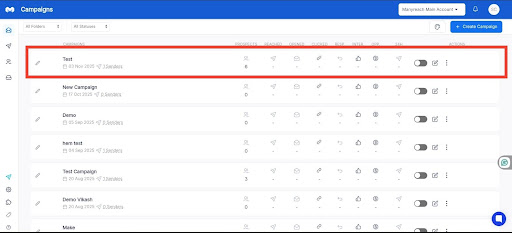
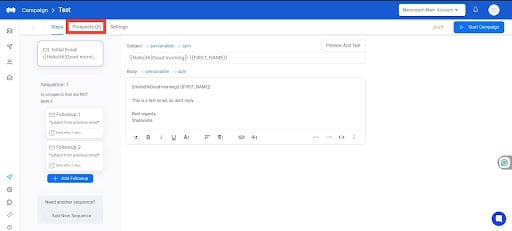
Once you’re in your campaign, find the “Prospects” option, and go there.
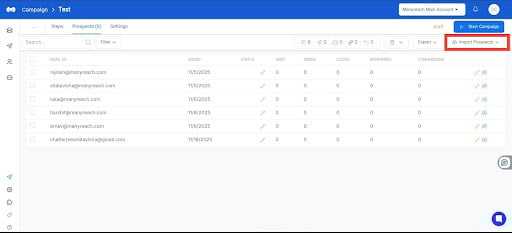
In the “Prospects” area you’ll find the option, “Import Prospects” option in the top right corner of the page.
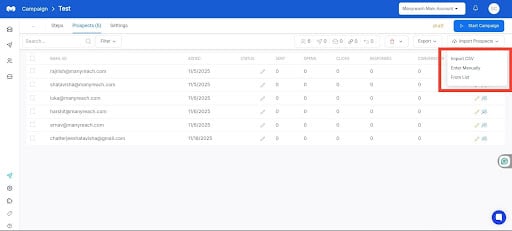
Click the “Import Prospects”, and you will find three options: Import CSV, Enter Manually, From the List.
If you choose:
Import CSV, you can upload the lead list from your computer.
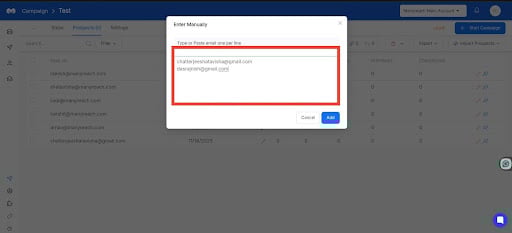
Enter Manually, you have to upload all leads manually, one email address in each line.
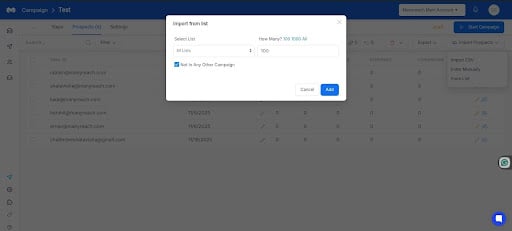
From the list, you can import leads from your CRM directly into the campaign.
You can choose your preferred way of uploading the prospects, and that’s it; you’ll be done adding leads in bulk to your Manyreach.