Requires your own OpenAI API key. Add it once in Manycrawl Settings → API keys before creating an Analyze column. Calls go from your browser straight to OpenAI — Manycrawl never sees your prompts, data, or key. You pay OpenAI directly at their rates, with no Manycrawl markup. See how to add your OpenAI key →
Analyze and Write is where Manycrawl gets creative. Feed it the output of any other column and tell the AI what to do with it: classify each row as B2B or B2C, summarize a homepage in one line, extract a founder's name from an About page, or write a personalized cold-email opener referencing what a company actually does. One column, one prompt, every row processed automatically.
When you add an Analyze column, you'll see a settings panel with three sections.
Write the instructions you want the AI to follow. This is plain English — describe the task as if you were briefing a smart intern.
The magic is in the placeholders. To reference data from another column in your table, type / and a dropdown appears with every column available — Description, Body text, Links, Social media, Emails, Phone numbers, First email, plus any other enrichment columns you've added like Places search → Name or Places search → Website. Click one to insert it as a tag in your prompt.
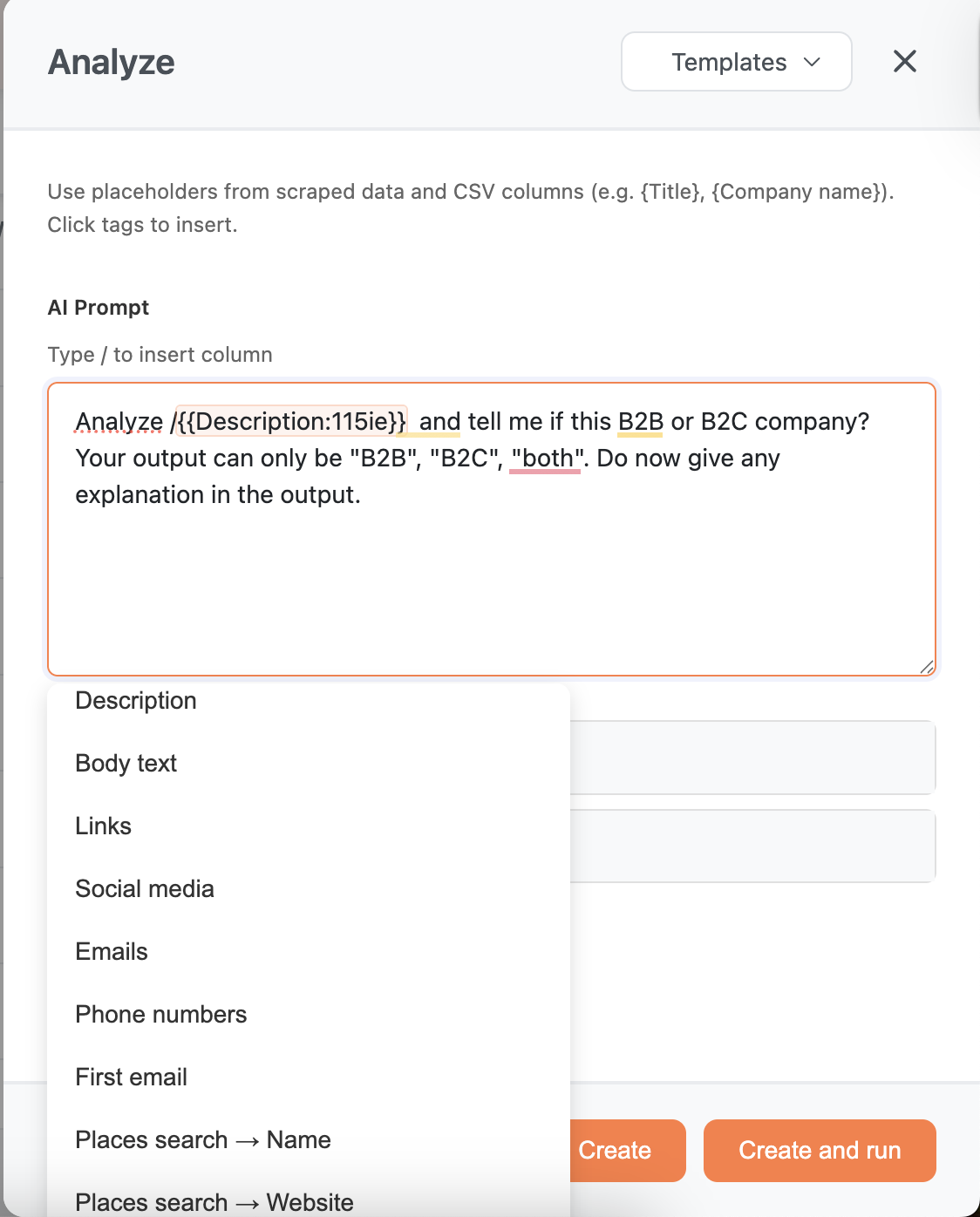
The result looks like this:
Analyze {Description} and tell me if this is a B2B or B2C company.
Your output can only be "B2B", "B2C", "both". Do not give any
explanation in the output.
When the column runs, Manycrawl replaces every {Column Name} tag with that row's actual value before sending the prompt to the AI. You can reference as many columns as you want in a single prompt — combine a scraped Body text with a Places search Name and an Email provider to generate context-rich output for every row.
You can also click the Templates dropdown at the top of the panel for ready-made prompts (classify B2B/B2C, write a cold email opener, summarize, extract company name, and more). Or create your own templates for future use.
Below the prompt, Manycrawl shows a live preview of what the AI will actually see for your first row — with all placeholders already filled in. Use this to sanity-check that you've referenced the right columns and that the input makes sense before you spend tokens running it across hundreds of rows.
AI Model — pick which OpenAI model handles the request. gpt-4o-mini is the default and a good balance of speed, cost, and quality. Switch to a larger model for complex reasoning, or a smaller one for simple classifications at scale.
Max Content Length (characters) — caps how much input text gets sent to the AI. Default is 3000 characters. Longer content gets truncated to this length before the call, which controls cost on rows with huge scraped pages.
Max Tokens — caps the AI's response length. Default is 500. Raise it for long-form output like full emails, lower it for short classifications.
Classify each row. Feed in {Description} or {Body text} and ask the AI to return one of a fixed set of labels. Constrain the output explicitly: "Your output can only be 'B2B', 'B2C', or 'both'. Do not give any explanation." That last sentence is the difference between a clean dataset and a column full of paragraphs.
Summarize. Pass {Body text} and ask for a one-sentence summary of what the company does. Great for cleaning up raw scraped content into something you can read at a glance — or feed into another AI prompt.
Extract specific data. Tell the AI to find a founder's name, a pricing number, an office address, or a tech stack mention inside scraped content. Faster than writing regex, and works on messy data.
Write personalized content. Reference multiple columns at once to generate cold-email openers, LinkedIn DMs, or ad copy that's specific to each row. Example: "Write a one-sentence cold email opener for {Places search → Name}, a company that does this: {Description}. Mention something specific about their business."
Chain prompts. The output of an Analyze column is just another column — you can reference it in the next Analyze column. Step 1 extracts a founder's name; step 2 writes an email addressed to that name.
Constrain the output format. AI loves to be helpful and chatty. If you want one word, say so explicitly: "Reply with only 'yes' or 'no'."
Use the preview. Check the first-row preview before hitting Create and run — fixing a broken placeholder before running 500 rows saves real money on tokens.
Lower Max Content Length on big lists. If you're processing thousands of rows, dropping from 3000 to 1500 characters can cut your OpenAI bill in half with minimal quality loss for short tasks like classification.
Bring your own OpenAI key. Analyze and Write only works once you've added your OpenAI API key in Manycrawl Settings. The calls go browser → OpenAI directly — Manycrawl never sees your prompts or data.