Where Scrape fetches a single URL, Crawl maps an entire site. Point it at one seed URL — a company homepage, for example — and Manycrawl follows the links, scrapes each page it finds, and adds them all as new rows. It's the fastest way to find a specific page type (pricing, about, contact, careers) across dozens of websites without knowing the exact URL in advance.
When you add a Crawl column, you'll see a settings panel with three main sections.
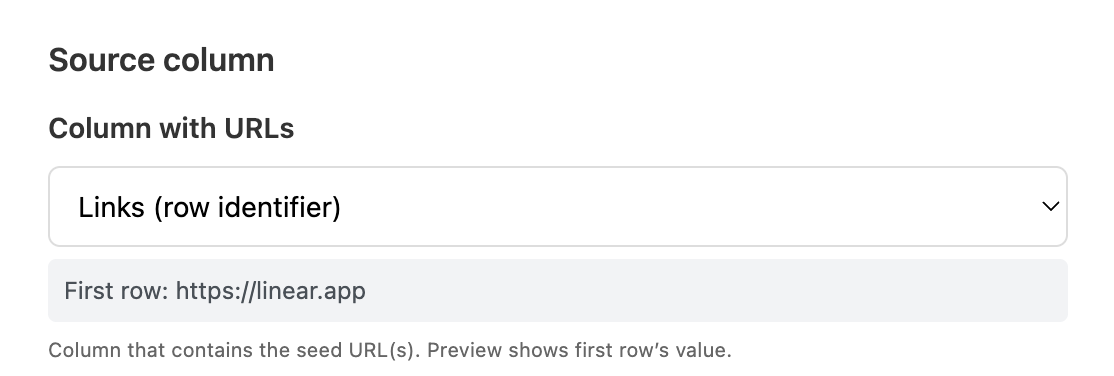
Pick the column that contains your seed URLs — the starting point for each crawl. This is usually a list of homepage URLs you've pasted in, scraped from Search Engine, or pulled from Places Search. Manycrawl shows the first row's URL as a preview.
This is where you control how far and wide Crawl goes.
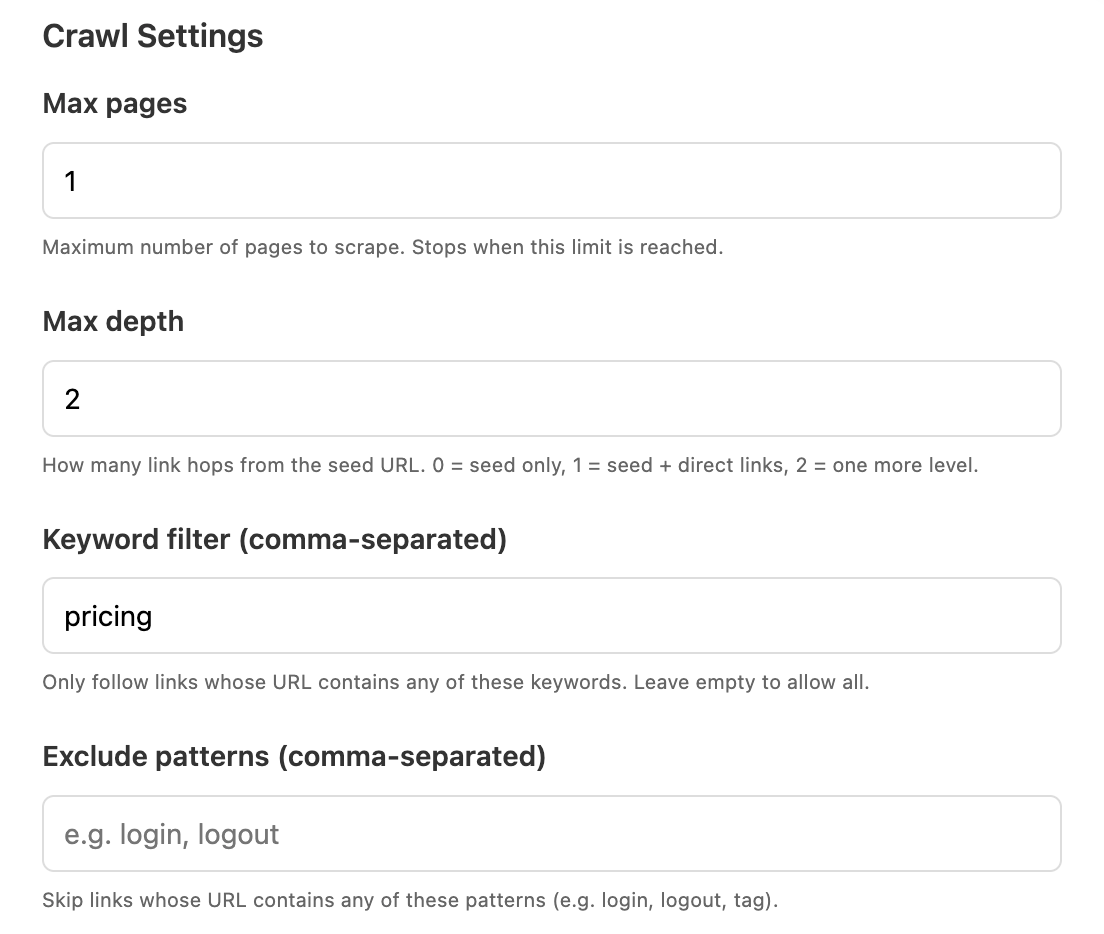
Max pages — the hard ceiling on how many pages to scrape per seed URL. Default is 50. Once Crawl hits this number, it stops, even if there are more pages it could visit. Raise it for thorough site maps, lower it to keep things fast and cheap.
Max depth — how many link hops away from the seed URL Crawl is allowed to travel. The values work like this:
0 = seed URL only (one page, no following links); example: manyreach.com
1 = seed URL + every page linked directly from it; example: manyreach.com/pricing
2 = one more level deeper — pages linked from the pages linked from the seed; example: manyreach.com/es/pricing
Most use cases work best at depth 1 or 2. Higher depths grow exponentially and usually pull in more noise than signal.
Keyword filter (comma-separated) — only follow URLs whose path contains one of these keywords. For example, entering blog, product means Crawl will only visit URLs with "blog" or "product" in them. Leave it empty to follow everything.
Exclude patterns (comma-separated) — skip URLs that contain any of these patterns. Useful for cutting out auth pages and other junk: login, logout, tag, signup.
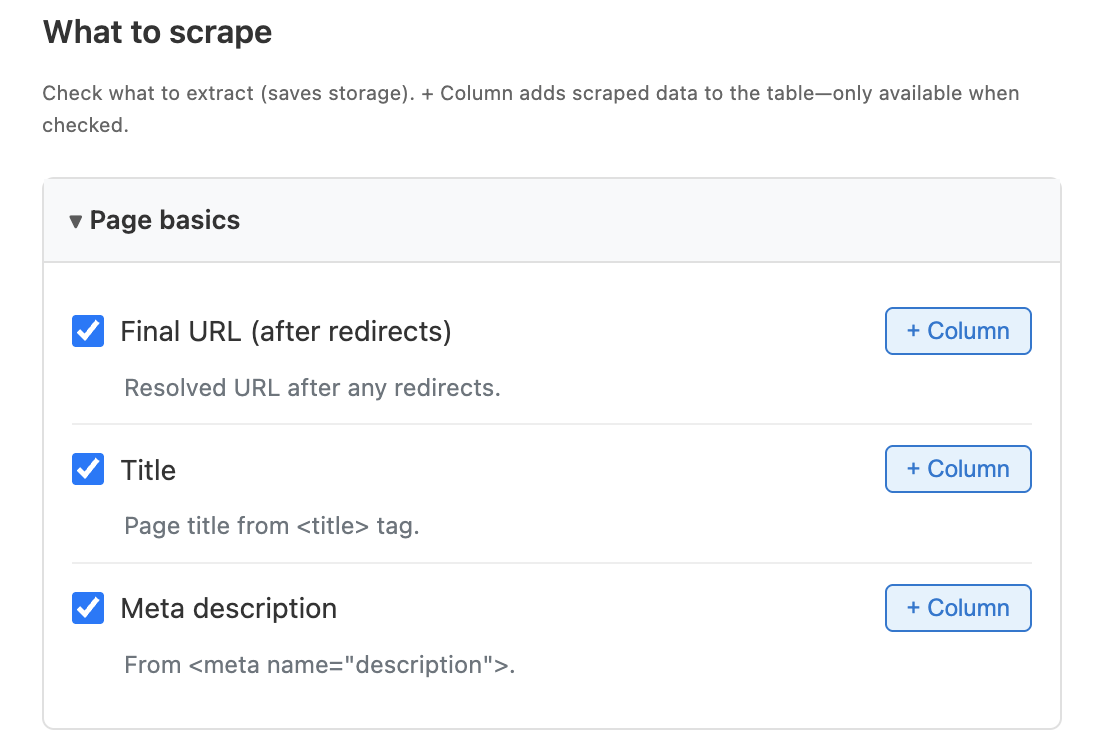
Identical to the Scrape enrichment. Check the fields you want Manycrawl to extract from every page it visits — page basics (final URL, title, meta description), content (body text, Markdown, full HTML), links and social profiles, and contact info (emails, phone numbers). Each field has a + Column button to promote it into its own column in your table.
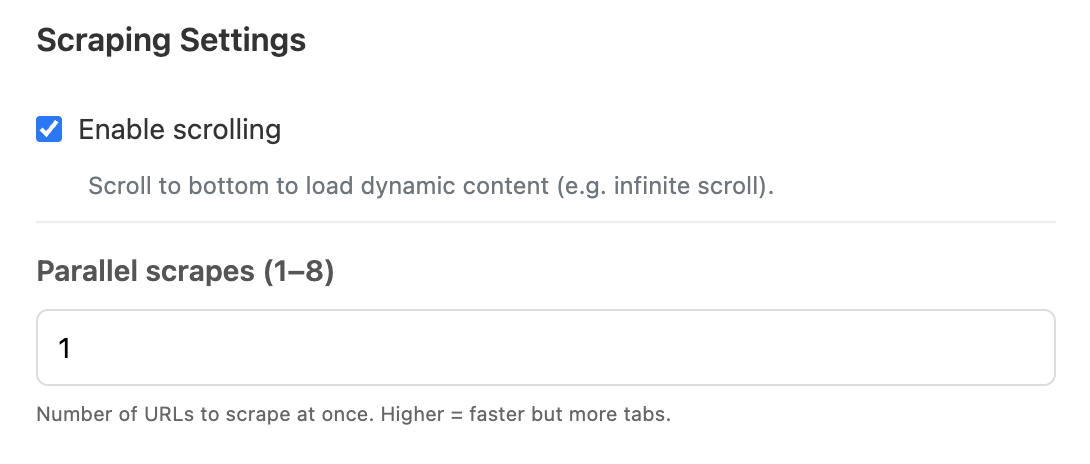
Enable scrolling — scrolls each page to the bottom to trigger lazy-loaded content. Useful for sites with infinite scroll.
Parallel scrapes (1–8) — how many pages to fetch at once. Higher numbers are faster but open more tabs and use more memory. Start at 1 and increase if your machine handles it.
You have a list of SaaS companies — maybe a few hundred from a market map or a list you scraped — but you don't know which segment each one targets (SMB vs Enterprise) or whether their pricing is even public. Crawl finds every pricing page, and a follow-up Analyze and Write column tells you what's on it.
Setup:
Source column: your list of SaaS company homepage URLs
Max pages: 20 (plenty for finding one specific page)
Max depth: 1
Keyword filter: pricing, plans, price
Exclude patterns: blog, login, signup
Hit Create and run. Within minutes, every company's pricing page is added as a new row with the page content scraped. Rows where Crawl finds nothing tell you something useful too — that's likely a company with no public pricing, which usually means Enterprise sales.
From there, chain in an Analyze and Write column with a prompt like:
Based on this pricing page content: {Body text}
Classify this company's target segment as one of:
"SMB", "Mid-market", "Enterprise", "Mixed".
Reply with only the label, no explanation.
Within one more pass, your spreadsheet shows you exactly which companies target which segments — sortable, filterable, and ready to use.
💡 Tip: set Max depth to
1when hunting for specific pages.At depth
1, Crawl only follows links directly from the homepage — which is where companies almost always link their pricing page. Going to depth2or higher pulls in junk like translated versions (/fr/pricing,/de/pricing,/es/pricing) and duplicates that clutter your results. Depth1keeps it clean: one pricing page per company, in the company's primary language.
Map a competitor's full product catalog. Set keyword filter to product, products, shop and crawl their site to pull every product page into your table.
Find all blog posts on a domain. Set keyword filter to blog, posts, articles and crawl their content section — great for competitive content research.
Build a sitemap before a redesign. Crawl your own site with no filters to get a complete inventory of every page, with titles and descriptions.
Hunt for contact pages. Use keyword filter contact, about, team across a list of company URLs to find decision-maker pages and team rosters.
Be specific with your keyword filter. A narrow filter (pricing, plans) is much more useful than a broad one (page, content). The filter is your scalpel — use it.
Watch your action count on big crawls. Each page scraped counts as one Manycrawl action. A crawl of 50 pages across 100 rows is 5,000 actions. Free plan users hit the 500-action monthly limit fast at that scale — start small.
Combine filter + exclude. A keyword filter like pricing plus an exclude pattern like blog, support is the cleanest way to land on exactly the page type you want.
If a crawl returns nothing, the seed URL probably blocks the crawler or has no internal links matching your filter. Try the Scrape enrichment on that URL first to confirm it loads at all.