Requires your own Findymail API key. Add it once in Manycrawl Settings → Integrations before creating this column. Calls go from your browser straight to Findymail — Manycrawl never sees your key or the results. You pay Findymail directly at their rates, with no Manycrawl markup. See how to add your Findymail key →
Find email by LinkedIn is the simplest way to turn a LinkedIn profile into a contactable email address. Point it at a column of LinkedIn URLs — usually scraped from Search Engine results — and Manycrawl asks Findymail to look up the verified business email for each profile. One column in, three columns out: the email, the name, and the first name (when Findymail can extract them).
When you add a Find email by LinkedIn column, you'll see a simple settings panel with one field.
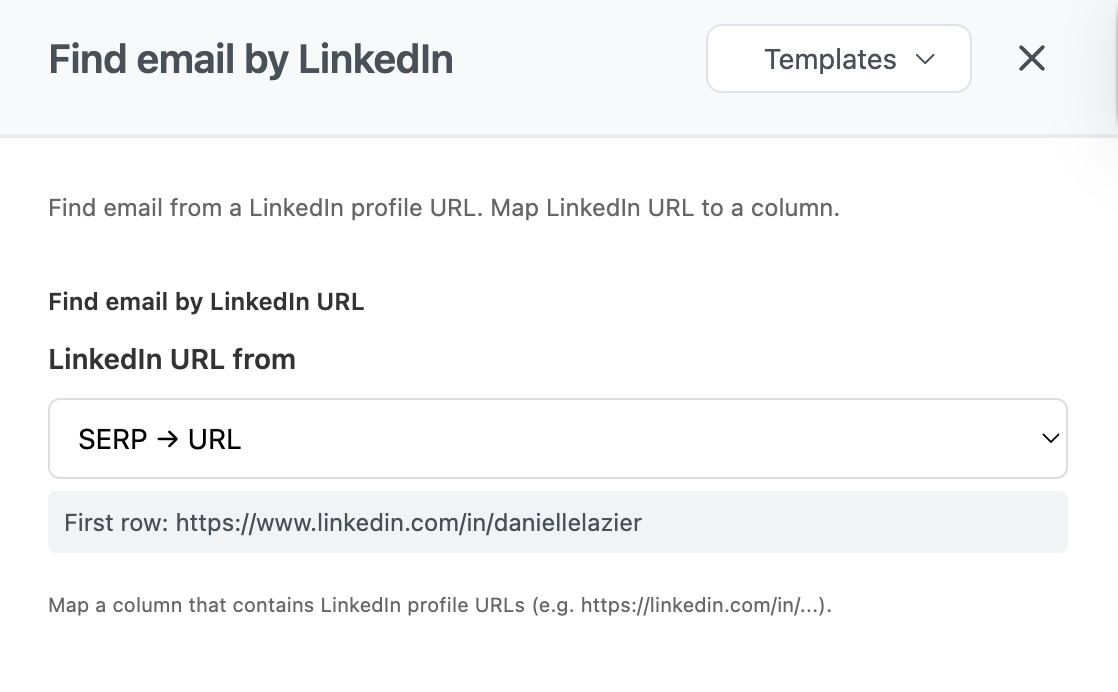
Pick the column containing LinkedIn profile URLs. Manycrawl shows the first row's URL as a preview so you can confirm you've picked the right column. The expected format is a full LinkedIn profile URL like https://www.linkedin.com/in/danielle-lazier.
Common sources:
SERP → URL — when you've used Search Engine with a query like site:linkedin.com/in/ {role} {city} to find profiles
A CSV column you pasted in with LinkedIn URLs from another tool
A Crawl result if you've crawled a company's team page and pulled out LinkedIn links
That's it for configuration — Findymail handles the rest.
When the column runs, it produces multiple columns:
Find email by LinkedIn — the verified business email (e.g. [email protected])
Name — the full name as Findymail returns it (e.g. Danielle Lazier)
First name — just the first name, useful for personalization
Email — duplicate of the main email field, available for clean referencing in other columns
Empty results mean Findymail couldn't find a verified email for that profile. This happens with profiles that have very limited public information, recently created accounts, or company-restricted privacy settings. It's not a bug — Findymail only returns emails it can verify.
This is the canonical Manycrawl outreach pipeline. Five enrichments, end-to-end, from search query to send-ready spreadsheet.
Step 1 — Search Engine: find profiles
Queries:
site:linkedin.com/in/ "head of sales" SaaS Berlin
site:linkedin.com/in/ "VP sales" SaaS Berlin
Each LinkedIn profile in the results becomes a new row with the URL and title.
Step 2 — Find email by LinkedIn: get verified emails
Add a Find email by LinkedIn column referencing SERP → URL. Within a minute or two, every profile in your table has a verified email attached (where Findymail has one).
Step 3 — Split cell + Format personal name: clean the names
Use Split cell to extract just the name from the SERP title, then Format personal name to strip any remaining emojis or pronouns. Now you have a clean First name and Last name for each row, ready for personalization.
Step 4 — Scrape: pull each person's company context
If the SERP snippet includes a company URL, or if you can extract one with another Split cell or Analyze column, chain Scrape on it to pull homepage content.
Step 5 — Analyze and Write: generate personalized openers
Reference both the cleaned name and the scraped company content in your AI prompt:
Write a one-sentence cold email opener for {First name},
who works at this company: {Body text}
Reference something specific. Keep it under 25 words.
End result: a spreadsheet with LinkedIn URL, verified email, clean name, company context, and a personalized opener for every row — exportable to CSV or pushable straight into a Manyreach campaign.
Re-enrich a list of LinkedIn URLs you collected manually. Have a list of profile URLs you saved over months but no emails? One Find email by LinkedIn column turns the whole list into a contactable database.
Enrich a team page crawl. Use Crawl on a company's /team or /about page with a keyword filter for linkedin.com/in/ to pull every team member's LinkedIn URL, then Find email by LinkedIn to get verified emails for the whole team.
Decision-maker discovery. Combine with Search Engine queries like site:linkedin.com/in/ "CTO" {Company name} across a list of target accounts to find decision-maker emails for ABM-style outreach.
Verify your Findymail credits before big runs. Each lookup uses one Findymail credit. Findymail's dashboard shows your remaining credits — check it before running a column with hundreds of rows so you know you have enough budget.
Expect a fill rate, not 100% coverage. Findymail returns verified emails only — if it can't verify, you get an empty cell. Typical fill rates are 50–70% on LinkedIn searches, depending on the role and company. That's a feature, not a bug — bad emails wreck sender reputation.
Pair with Email provider finder on the output. Once you have emails, run Email provider finder on them to spot strict DMARC policies, security gateways, and role addresses before launching a campaign. Saves your sender reputation.
Chain after Search Engine for the cleanest pipeline. SERP results give Findymail the exact profile URLs it needs. Going from Search Engine → Find email by LinkedIn → Analyze and Write is the workflow that took the longest to do manually and now takes minutes.
You pay Findymail directly. Manycrawl doesn't mark up calls. If you already have a Findymail subscription, plug your key in and you're using credits you've already paid for.