Requires your own Findymail API key. Add it once in Manycrawl Settings → Integrations before creating this column. Calls go from your browser straight to Findymail — Manycrawl never sees your key or the results. You pay Findymail directly at their rates, with no Manycrawl markup. See how to add your Findymail key →
Find email by domain skips the name-and-LinkedIn dance. When you only care about reaching a specific role at a company — say, the CEO or Founder — this enrichment finds that person at any domain you give it. Perfect for top-of-funnel outreach where you know the title you want to reach but not the individual.
When you add a Find email by domain column, you'll see a settings panel with two fields. Both are required.
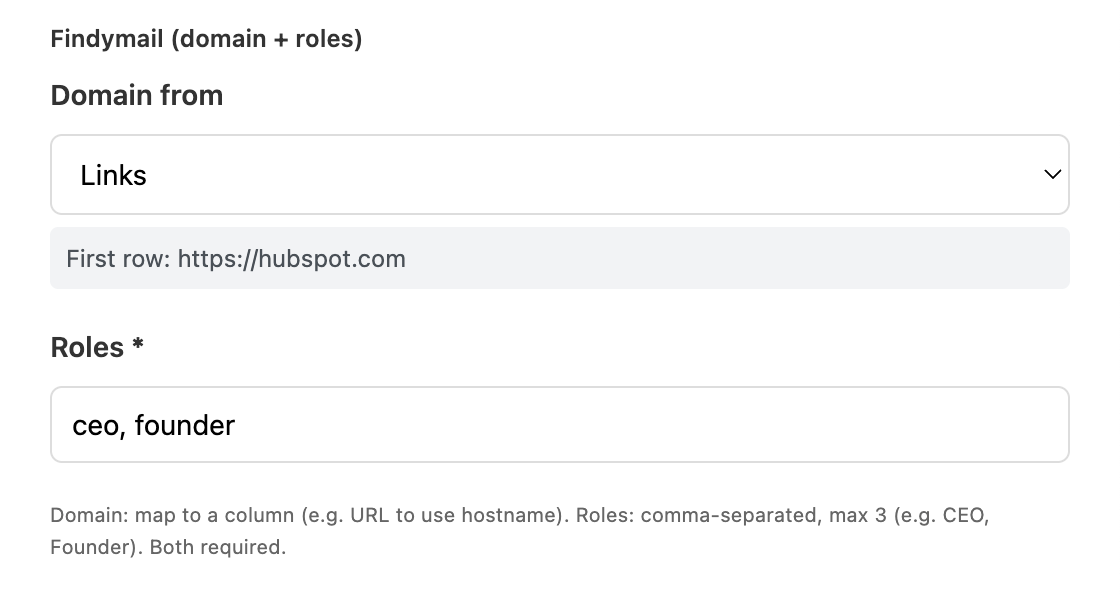
Pick the column containing the domains you want to look up. Manycrawl is flexible about the format — it can take:
A column of bare domains (hubspot.com)
A column of full URLs (https://hubspot.com)
A column of scraped Links — Manycrawl extracts the hostname automatically
The first row's value is shown as a preview so you can confirm the input.
Common sources:
Places search → Website — local businesses you just scraped
Scrape → Final URL — domains you've already enriched
A pasted CSV column of company domains
SERP → URL when the search results are direct company sites
Type the job titles you want to find emails for, comma-separated. Maximum 3 roles per column.
Useful examples:
ceo, founder — to reach the top of a startup
head of sales, vp sales, sales director — multiple sales leadership variants
cto, head of engineering, vp engineering — engineering leadership across naming conventions
marketing manager, head of marketing — marketing decision-makers at different company sizes
Findymail interprets these intelligently — ceo matches "Chief Executive Officer", founder matches "Co-founder" and "Founding Partner", and so on. Casing doesn't matter.
Why the 3-role limit: each role is essentially a separate lookup at the same domain. Findymail caps it to keep the cost per row predictable and to avoid noisy results.
When the column runs, it returns the verified emails Findymail found for the roles you specified at each domain. Empty results mean Findymail couldn't verify an email for any of those roles at that domain — usually because the company is too small to have public role attribution, or the company structures titles unusually.
You've built a list of 300 SaaS startup domains and you want to reach each company's founder for a partnership pitch. You don't know the founder's name in advance, but you know the title.
Setup:
Domain from: your list of startup domains
Roles: ceo, founder, co-founder
Hit Create and run. Within a minute or two, every row has the founder's verified email attached (where Findymail can find one). Chain Analyze and Write next to generate a personalized opener referencing each startup's product, and you have a complete founder-outreach campaign in under ten minutes.
All three enrichments give you verified emails through Findymail. The right one depends on what data you have:
Find email by LinkedIn — when you have LinkedIn profile URLs (usually from Search Engine)
Find email by name — when you know the specific person's first name, last name, and their company domain
Find email by domain — when you only know the domain and the role you want to reach
Find email by domain is the right pick when you're prospecting at the company level rather than at the person level. You don't care who the CEO is — you just want to talk to whoever holds that title.
Cold outreach at scale to a target list. You've got a list of ICP companies but no contact research. Find email by domain with the right role gets you directly to a decision-maker at each one.
Pair with Places search for local outreach. Run Places search to find local businesses, then chain Find email by domain on the Website field with owner, founder as the roles. Local-business owners are the audience for most SMB-focused tools.
Pair with Crawl for partnership outreach. Crawl a category list (like a competitor's customer logos page), pull each company URL, then Find email by domain with partnerships, head of bd, business development to reach the right person at each.
Backfill emails on a list missing them. If you have a list of companies in your CRM but no contact emails on file, Find email by domain with the most common role for your ICP fills in the gaps without needing to research names first.
Be specific with role titles, but include synonyms. head of sales, vp sales, sales director covers the same job across companies that title it differently. Three slots is just enough to catch most naming variations for one functional role.
Don't mix unrelated roles. ceo, head of marketing, cto will return whichever exists at the domain, but you'll get a messy mix of people from different functions. Stick to one functional area per column.
Expect a fill rate, not 100% coverage. Findymail returns verified emails only — small companies, stealth startups, and businesses with private leadership won't yield results. That's a feature: bad emails wreck sender reputation.
Verify your Findymail credits before big runs. Each role lookup uses one Findymail credit. A column with 3 roles across 300 domains could use up to 900 credits in a worst case. Check your balance before running big.
Pair with Email provider finder on the output. Once you have emails, run Email provider finder on them to spot strict DMARC policies, security gateways, and role addresses before launching a campaign.
You pay Findymail directly. Manycrawl doesn't mark up calls. If you already have a Findymail subscription, plug your key in and you're using credits you've already paid for.